

|
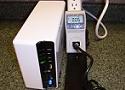


Disk Station DS207+

Below are a few screen shots of the software install and configure screens. The inital setup is as straight forward as it comes. The main page which is shown in the bottom left photo below is again pretty cut and dry, but the standard home user may be a little lost at first, but clicking on each option will bring up a page which contains the already stated "help" button to explain the options.
|
Timing the install of about 10 minutes was done, the final configuration of the device was waiting for the RAID consistency check to finish.
|
 TWL setup their device with a mirror RAID for the best data redundancy option. |
 The
check of drive consistency was the longest part of the install. Of course
this part of the install can be left unattended once kicked off. The
check of drive consistency was the longest part of the install. Of course
this part of the install can be left unattended once kicked off. |
 Here is the main page that can be pulled up from any local PC with admin rights. This page is the central control for the device. |
Under network services, you have the option to set the DS207+ to a Windows workkgroup or add it to an Active Directory domain. The domain option will be a little more for the network administrators out there. This is a awesome feature to have as appose to just a straight NAS device on the network which requires a pointer recorder etc. Also with Kerberose, your able to set folder permissions from Active Directory as appose to managing a seperate list of users and permissions. Other options under network services worth stating include FTP, Web hosting setup, Itunes server, and multimedia server, all in themselves are easy to configure and extremely useful for the office or home use. |


| « Specifications and Performance | Conclusion » |