

|



The Navigation
Once the GPS turned on, I was greeted by the screen in the picture below. As you can see in the picture below you are shown four options: "Car" - Navigation, "CD" - Music Player, "Camera" - Photo viewer, "Gears" - Settings.
 |
Below you can find the daytime and nighttime views of the map. As you can see you have the traditional menu button as well as the zoom in and out buttons. Have in mind that the GPS will zoom in only on the cross hair icon that you can see in the center of the screen.
 |
 |
The pictures below outline the method which the NEXTAR's I4-BC uses for imputing destination information.
 |
 |
For example, if you are in the map view, you first have to click on menu. This will brig up the main menu (above left picture). Then you will have to select destination. The I4-BC will then ask you what kind of destination would you like to go to and will give you a choice between address, favorites, intersection, recent, point of interest and city center.
 |
 |
The pictures above outline the "Address" method. When choosing the address method, the user can chose one of two ways of typing in the address - street first or city first. If you were to chose street first like I did in the example, the I4-BC would display a character map and then search through the database to match the street that you are typing in.
 |
 |
Extra Features
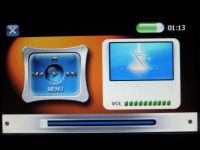
NEXTAR's I4-BC also came with a media player. Once you exit out of the Navigation program ("Car") you may select either the "CD" or the "Camera" to listen to MP3s or look at JPEGs. This is how the music player and picture viewer applications look like.
 |
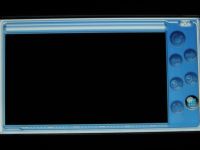 |
Once you plug in your SD card, you can select "Menu" to be presented with the option to play your tunes or look at your favorite pictures.
OTHER RELEVANT REVIEWS
Mio Digiwalker C520 GPS |
CLICK HERE FOR REALTIME PRICING ON THE NEXTAR I4-BC