
Introduction
Shopping for a wireless router can be a bit of a gamblet at times; every last one promises you the world, and problems can crop up with alarming frequency. Shopping for a wireless router with a small budget is an even riskier proposition, as manufacturers tend to cut corners to drive down their costs.
Wading into this sea of uncertainty is a relatively unknown manufactuer, EnGenius. Their history is more with telephony than with networking gear, but this latest router they’ve sent us, the ESR-9850, shows some promise. Let’s see if it can hold up when it counts.
A Closer Look
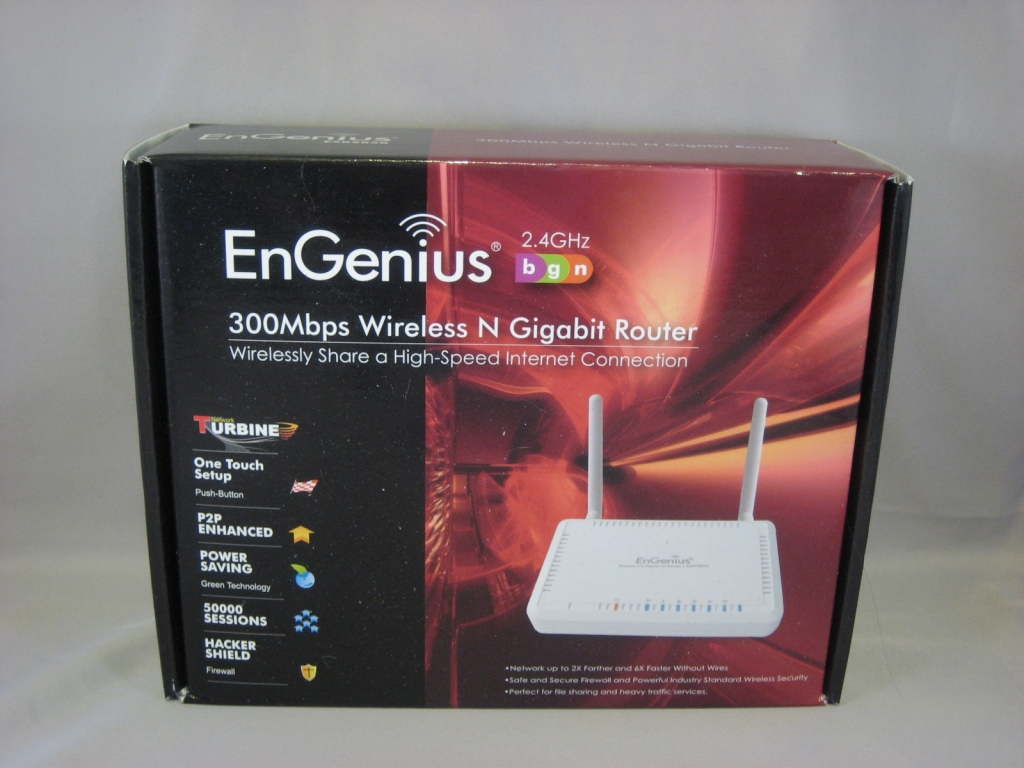
So far, so standard. The key phrases to pay attention to here are “2.4GHz”, “300Mbps Wireless N” and “Gigabit Router”. “50000 Sessions” is also interesting.
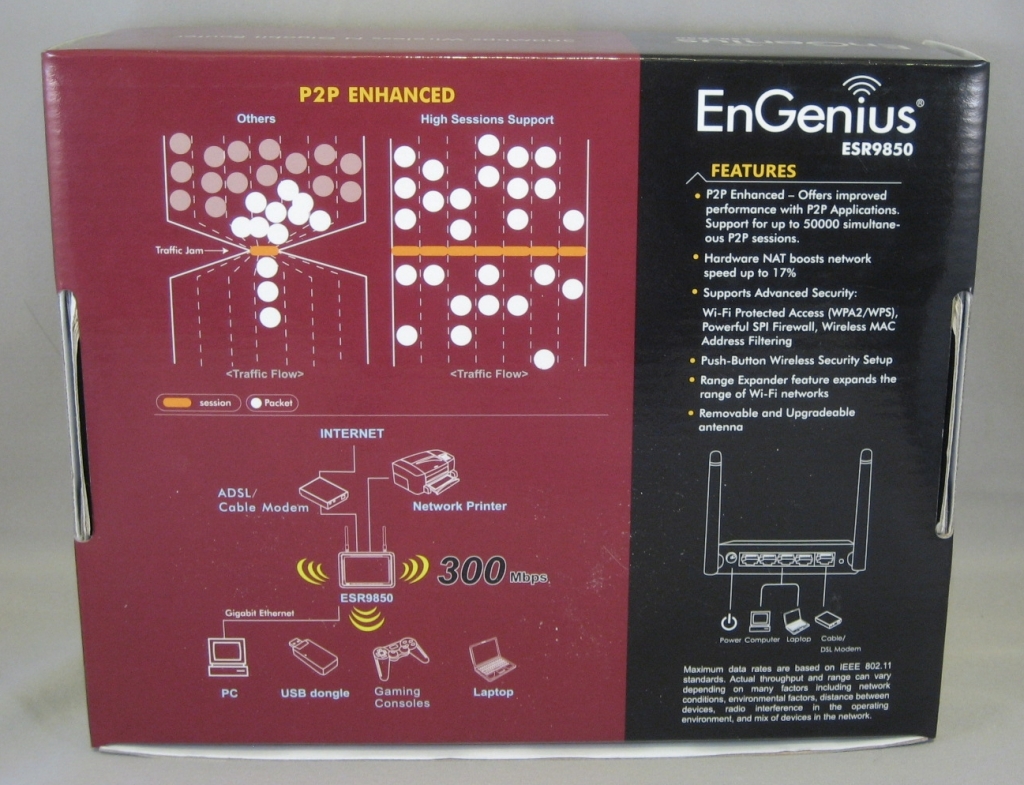
The back expands upon the features touted on the front. The advertised support for 50,000 simultaneous connections should be a boon for anyone who regularly uses BitTorrent or similar P2P software.
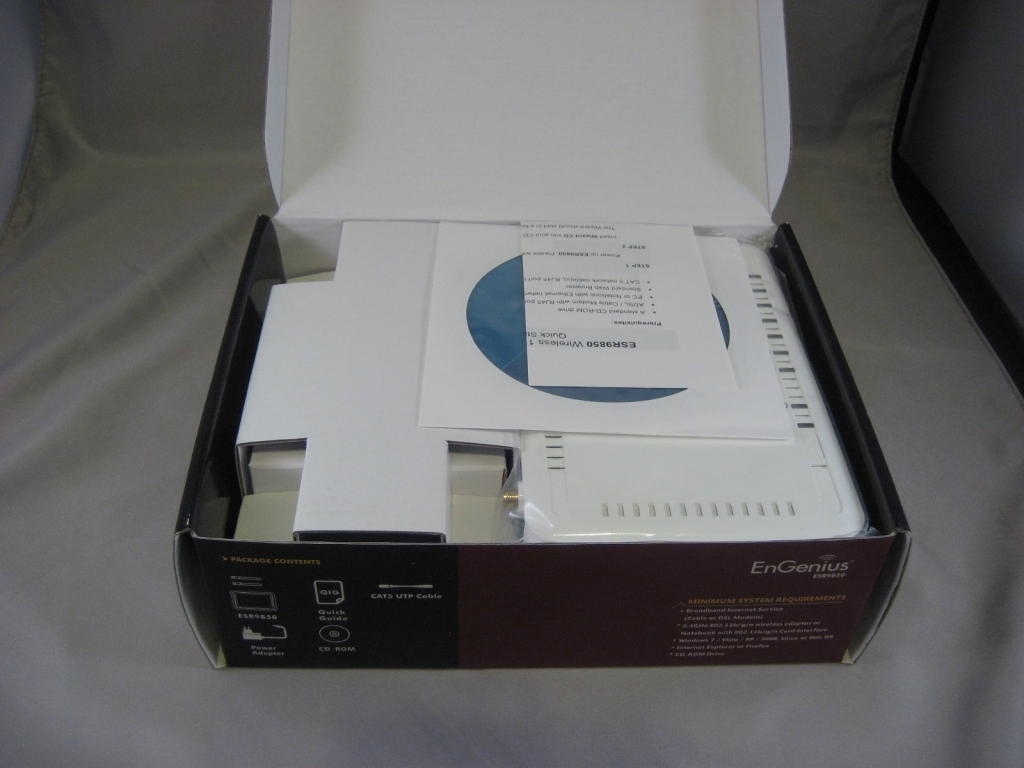
Opening the box up, we see what has become an increasingly common sight with consumer hardware: a setup CD and a scrap of paper with the bare minimum instructions to get said CD running.
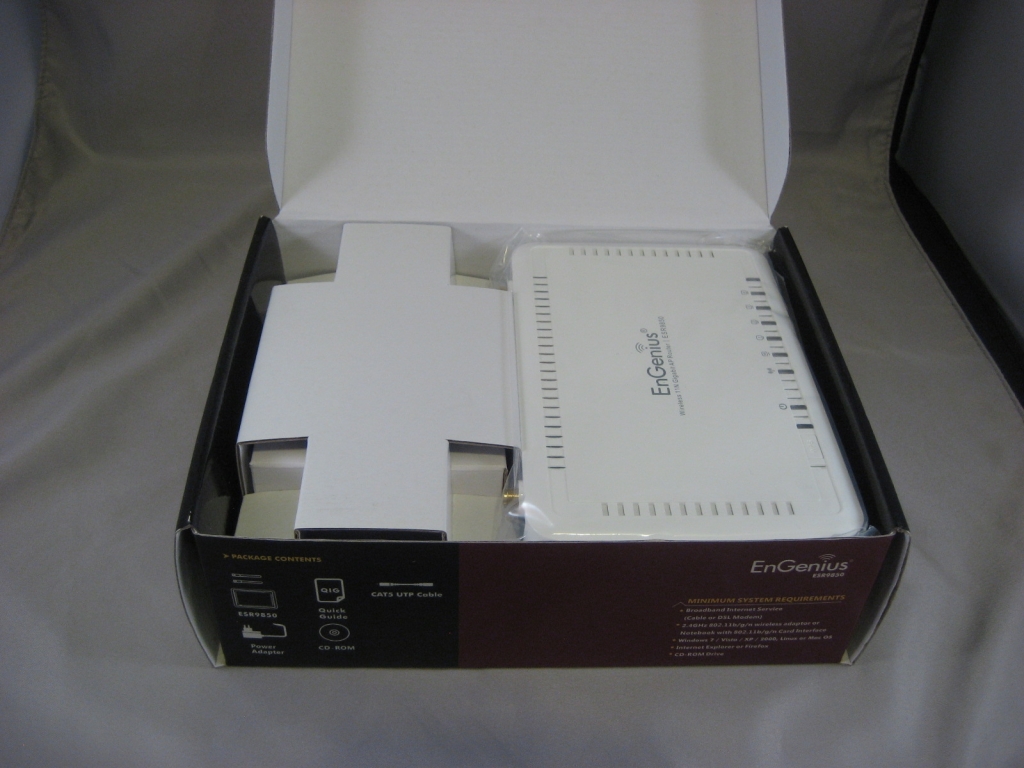
Under those, we see the router itself, wrapped in a plastic bag and wedged into place with a cardboard insert, which also contains the other accessories.
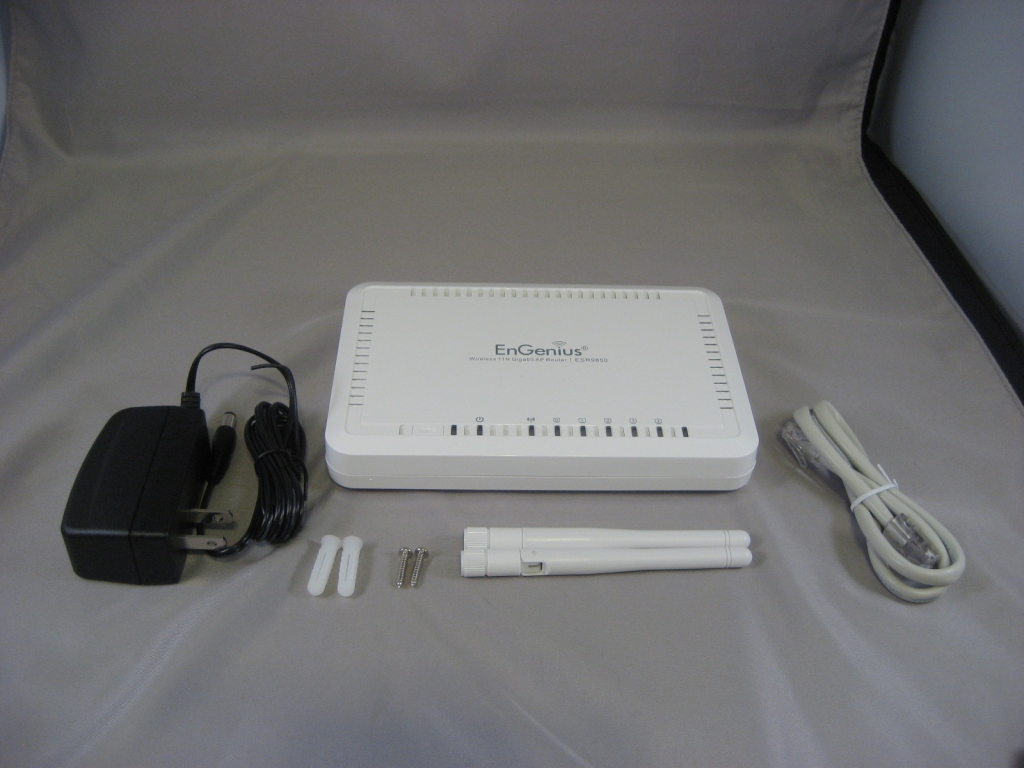
Clearing away the packaging, we are left with the router itself, an AC adapter, a short straight-through Cat5e patch cable, two screw-on antennas, and a pair of screws and drywall anchors for wall-mounting the router. On the router itself, we see a number of status lights across the top front, as well as a recessed button for activating WPS synchronization. More on that later.
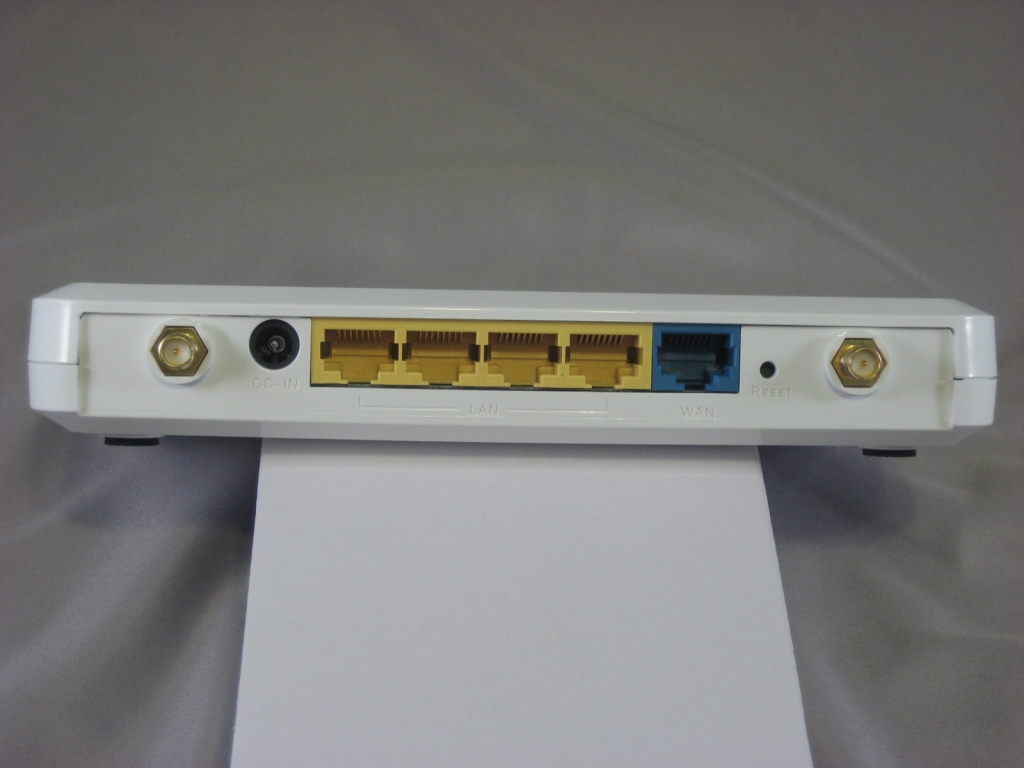
With a device like this, all the interesting bits are in the back. Flanking the ports on either side are a pair of antenna posts. Since these are standard SMA connectors, those in more challenging radio environments could opt to ditch the included antennas in favor of larger, higher-gain ones. Aside from that, we have the power plug, a reset button, and five Gigabit Ethernet ports, four for LAN and one for the WAN uplink. In an unusually helpful gesture, EnGenius has color-coded each group, making it easier to tell at a glance which is which.
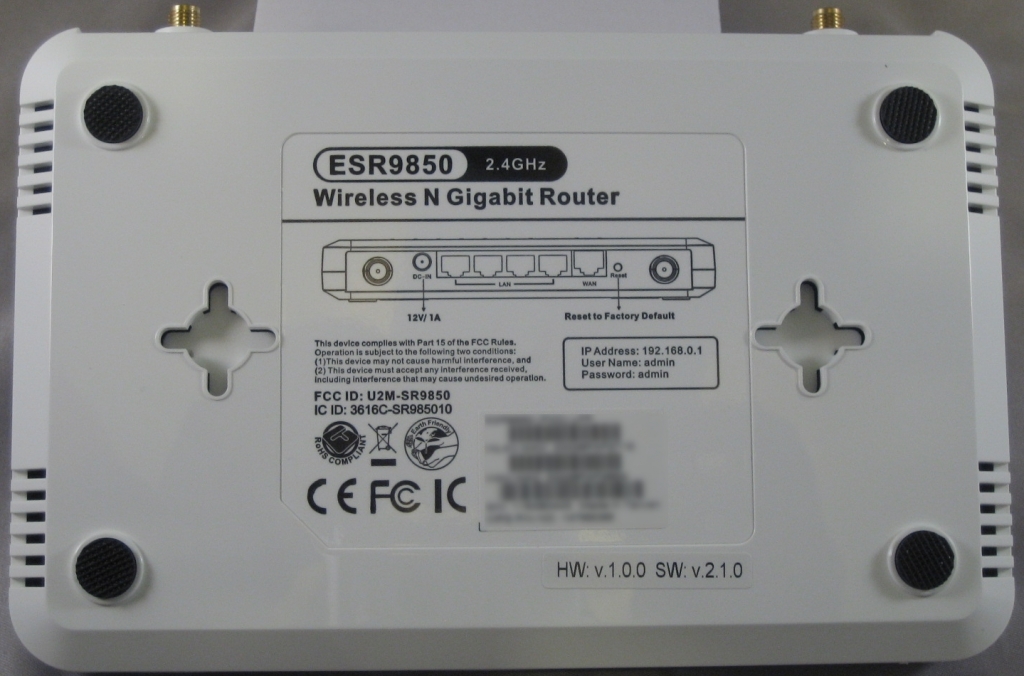
On bottom, we see both the wall-mount notches in the case and a sticker that gives you all the basic info you need to get the router up and configured including default router IP, user name and password. The blurred-out portion contains the router’s serial number and MAC address, which I don’t want to broadcast to the world for obvious reasons.
Setup and Features
The manual, which is included on the Setup cd in PDF form, is certainly thorough in describing what the router can do, but it isn’t terribly user-friendly in terms of explaining what those things are. If you’re already an old pro at setting up home networking equipment, you’ll feel right at home. If you’re not, be prepared to do some Google searching if you want to do anything besides go with the defaults.
|
|
|
|
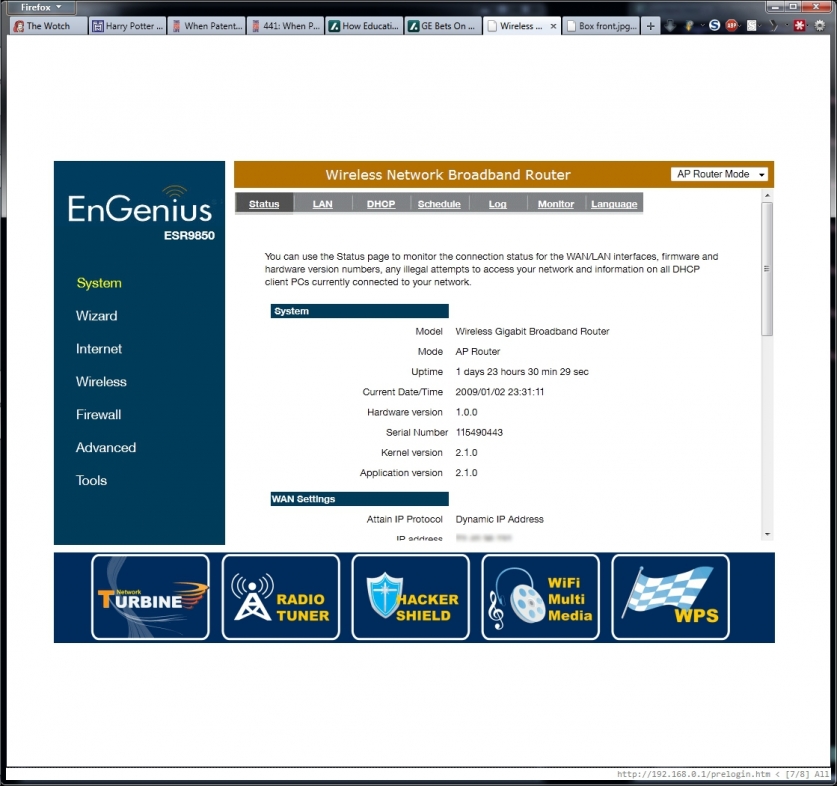

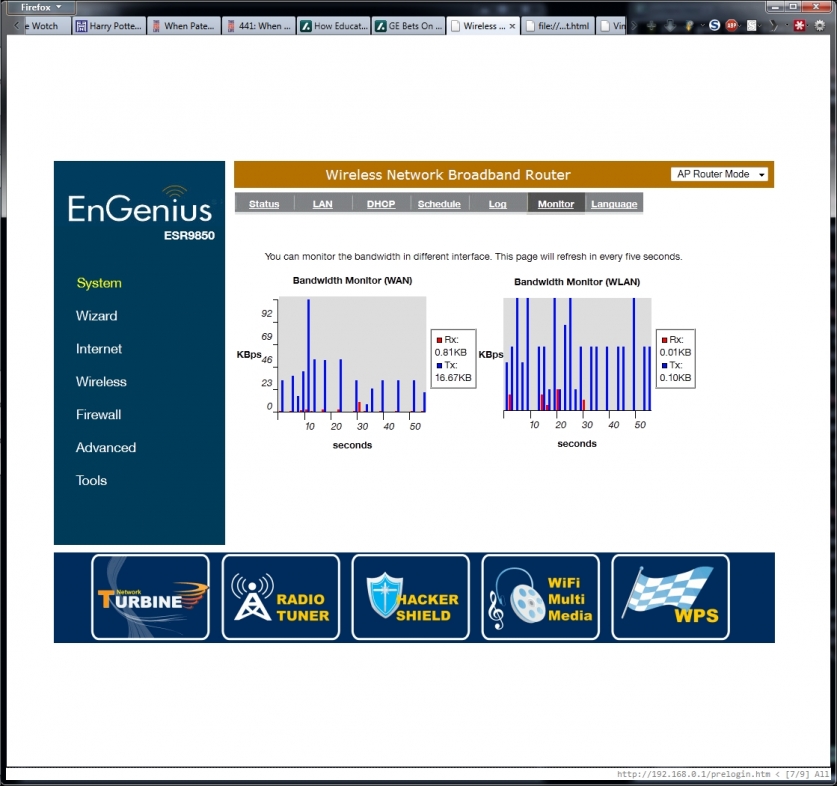
The layout of the web admin page is straightforward enough: categories on the left, detail tabs for each category on top. The decision to enclose the whole thing in a fixed-width frame is unfortunate, as it means you’ll be scrolling regardless of how large your screen is.
|
|
|
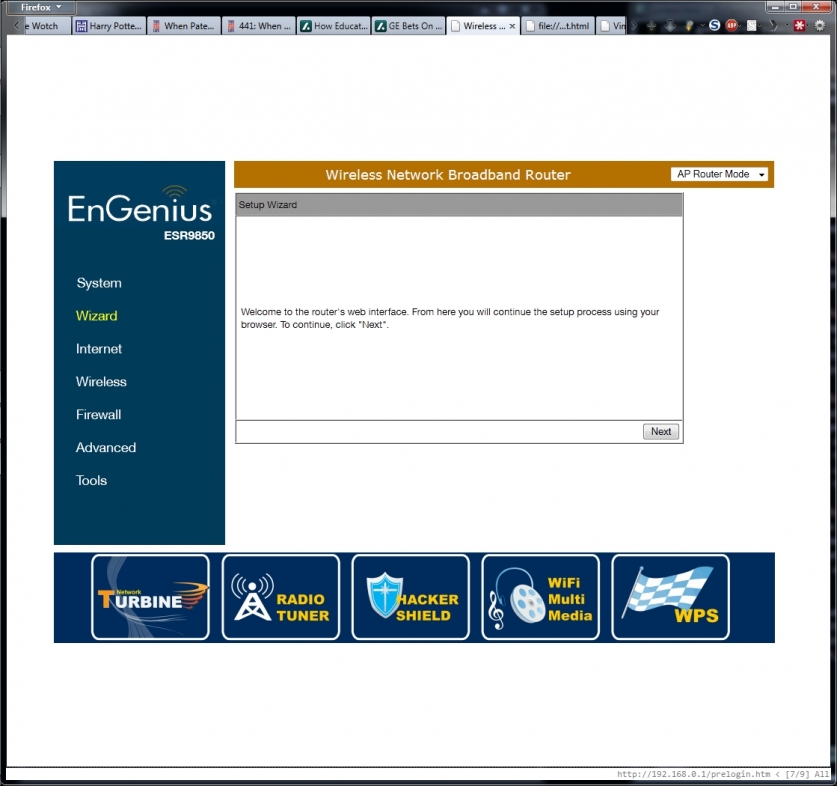
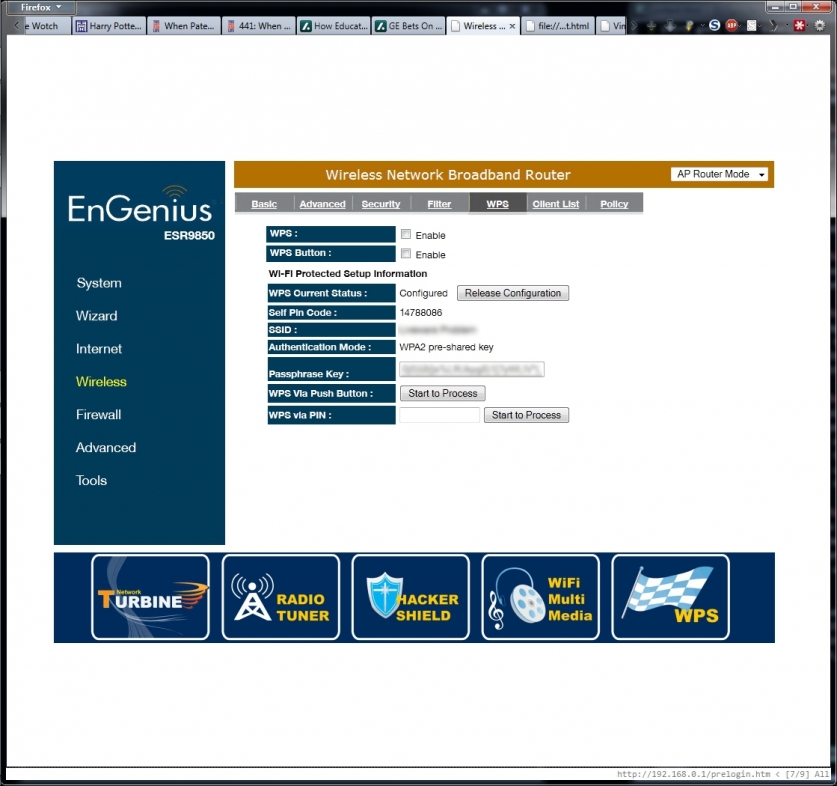
The Wizard runs you through the most basic of basics: wireless AP mode or gateway mode, WAN settings (if gateway) and wireless configuration. If you’re not doing anything fancy, it may be enough to get you going. If you don’t want to mess with copy-pasting WPA keys, you can use the WPS button the router to automate key exchange with compatible devices. If one or two of your devices don’t support WPS, the web interface allows for copy-pasting the key the traditional way.
|
|
|
|
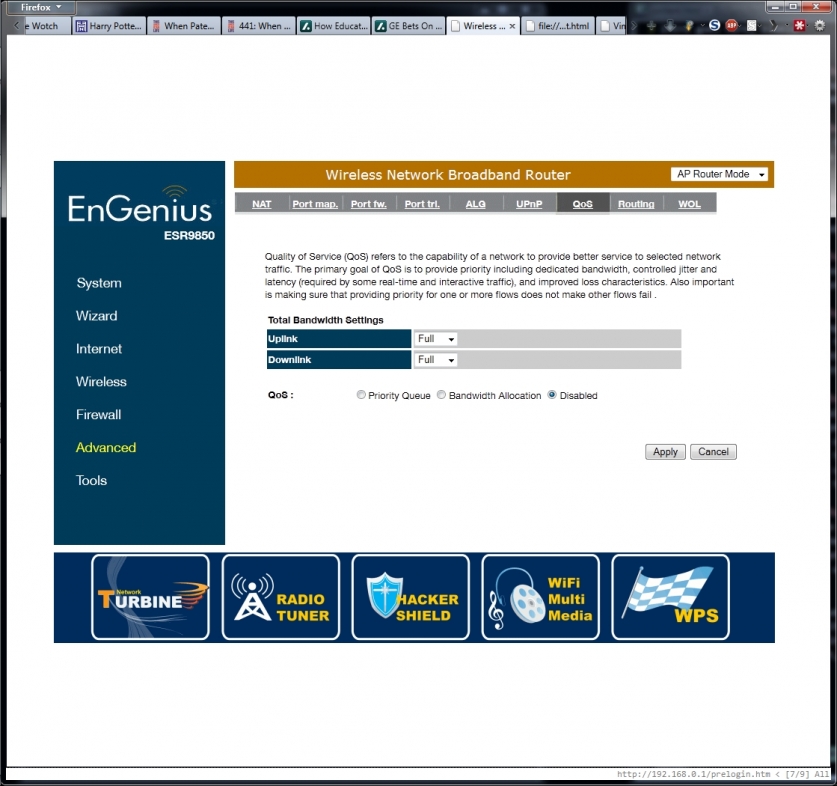
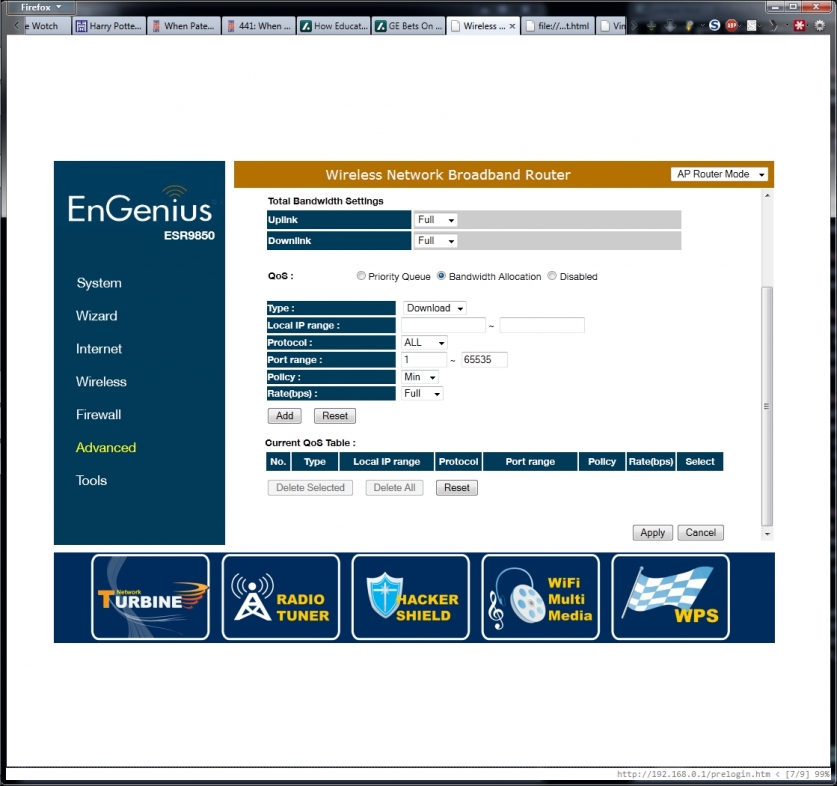
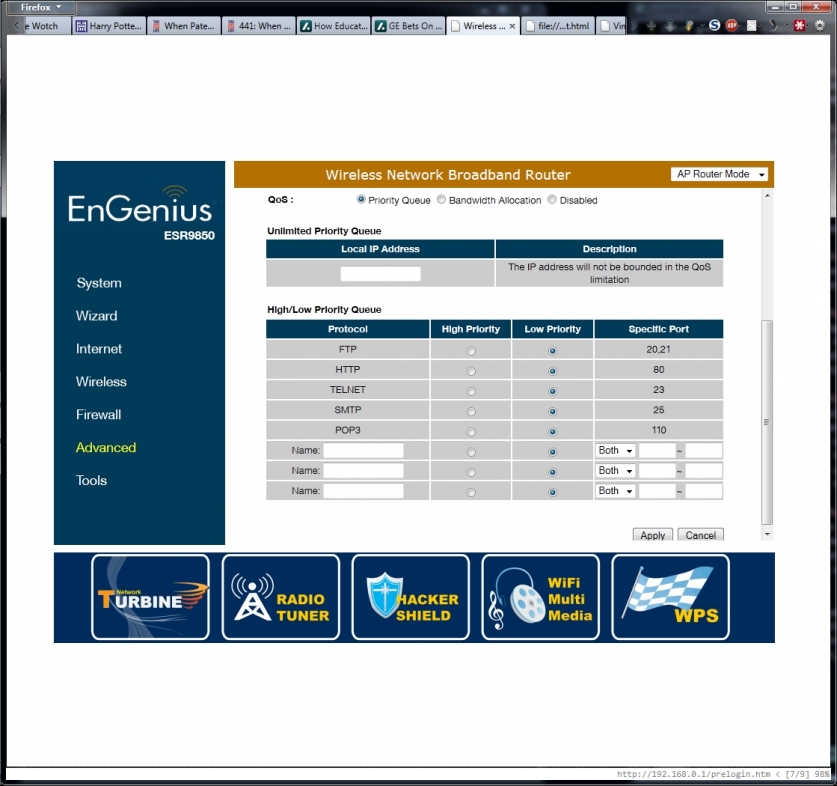
This router covers all the basic features you’d expect from a gateway router, including local DHCP and DNS, client filtering by IP or MAC address, Port forwarding and triggering, UPnP, and firewall. Above that, it provides QoS controls for traffic shaping, which can operate on a per port or per client basis. This can be helpful for habitual BitTorrent users who still want web surfing and email to be responsive.
|
|
|
|
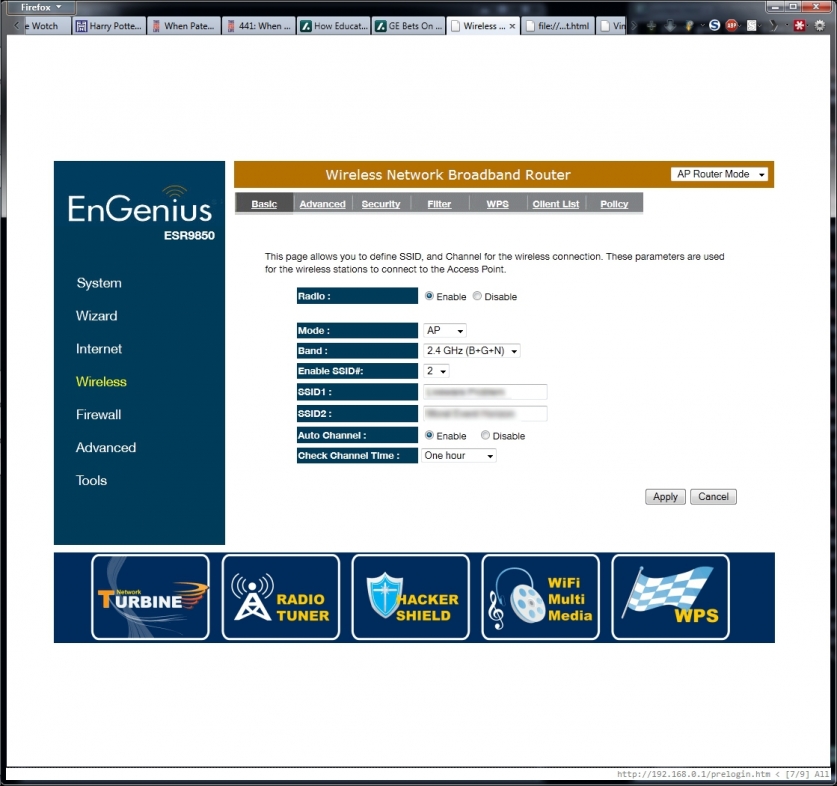
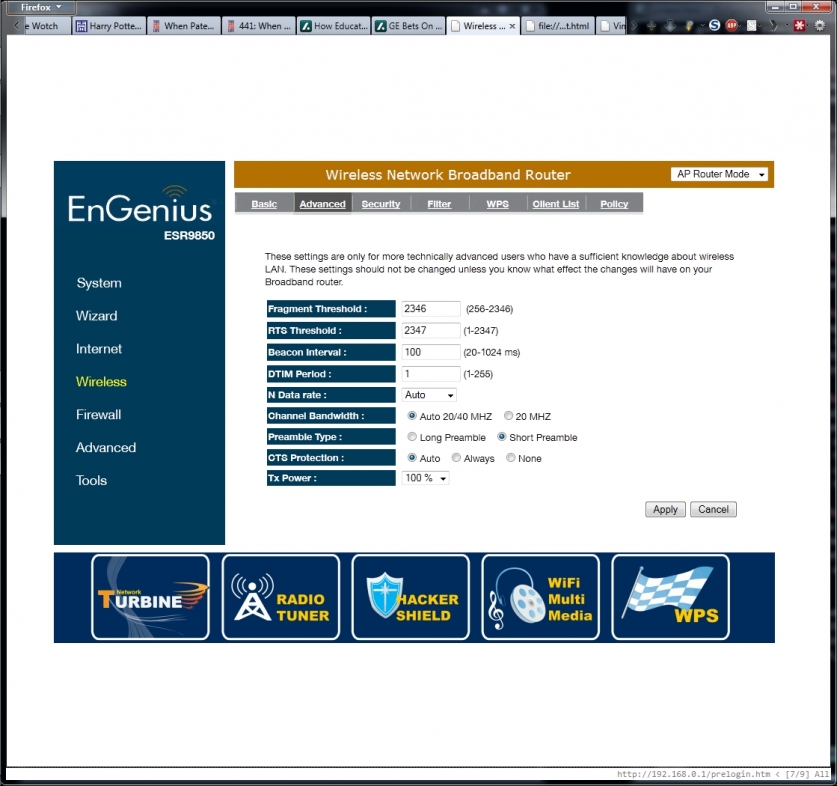
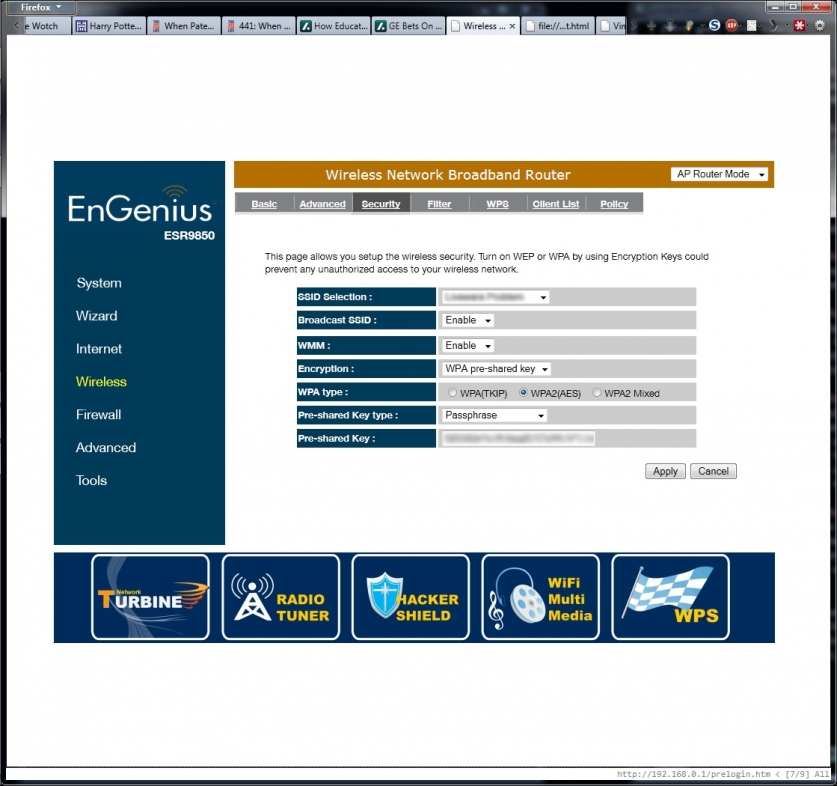
The wireless features on this router are quite sophisticated for a sub-$100 device. In addition to channel auto-scanning and other interference mitigation features, the ESR-9850 can maintain up to four separate wireless networks, with independent security settings for each. If you’ve ever wanted to provide open WiFi access to friends and neighbors without compromising the data on your private network, this router will let you do it with a minimum of fuss.
Performance and Conclusion
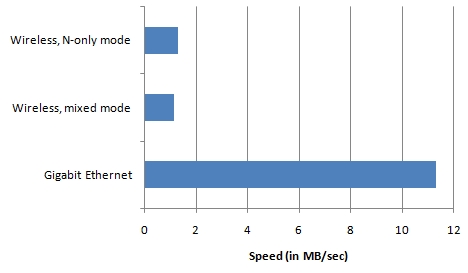
To test the performance of this router for local transfers, I transferred a 4.3gb video file between computers on the network; one was connected through an Ethernet port always, and the other was tested both with an 802.11n adaptor and a gigabit Ethernet connection. As you can see, the N-only mode did perform somewhat better than mixed mode, with average speeds of 1.28MB/sec for N-only and 1.14MB/sec for mixed mode. Gigabit Ethernet performance was respectable as well, with an average throughput of 11.3MB/sec. During these tests, web access from other wired and wireless clients proceeded at full speed, with no noticeable lag.
As the only available Internet connection was a 9Mbit/1Mbit DOCSIS 2.0 cable connection, I was unable to see any performance benefit from the Network Turbine feature. Throughput and latencies were good, however, even with four flash videos, two BitTorrent downloads and a Netflix streaming video running at the same time. BitTorrent downloads were faster in general, as the 50,000 simultaneous session support meant that my client was never waiting for a stale connection to time out and free up its slot. Swarms with 20+ seeds stayed at or near the 1.1MB/sec download limit for most of their run.
Overall, I am quite impressed with this router. Most home gateway routers in the sub-$100 category provide lackluster performance, restrictive configuration options, or both. This router delivered consistently high performance, and setting up my own peculiar, detailed configuration was a snap. I would highly recommend this router to anyone looking for an economical way to boost their network performance.


[…] EnGenius ESR-9850 Wireless Router @ TechwareLabs […]
[…] Snappy Smart Webcam Review @ XSReviews Fostex HP-P1 Headphone Amplifier & DAC @ techPowerUp EnGenius ESR-9850 Wireless Router @ TechwareLabs Computing on Demand: How to Configure MAXCDN with WordPress Tags: battlefield 3, corsair, […]