Synology DS713+ NAS

Introduction
Sharing files over network is a somewhat awkward affair; either you set up a shared folder on someone’s computer and leave it running all the time—and hope it doesn’t crash—or you commit to the expense and trouble of setting up a dedicated file server. NAS devices are meant to occupy the gap between those two extremes, providing workstation-independent storage without the configuration headaches and electricity bill of a full-fledged server. Synology is one of the most prominent names in this space, and we’ve had ample experience with their products in the past. Today we’re going to be taking a look at one of their latest SOHO offerings, the DS713+.
Packaging & A Closer Look
 |
 |
 |
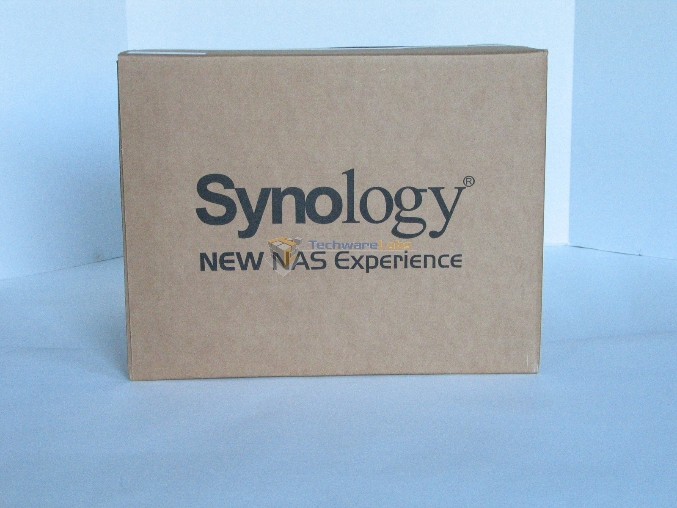
As you might expect for a business class product, the packaging for the DS713+ is entirely about function. No ink is wasted on ad copy, or indeed much of anything else. Inside, the unit itself is cradled by a pair of thick foam caps that brace it against the inside of the box from all sides. While it’s still possible for this unit to be damaged in shipping, sturdy packaging like this greatly reduces the chances of that occurring.
 |
 |
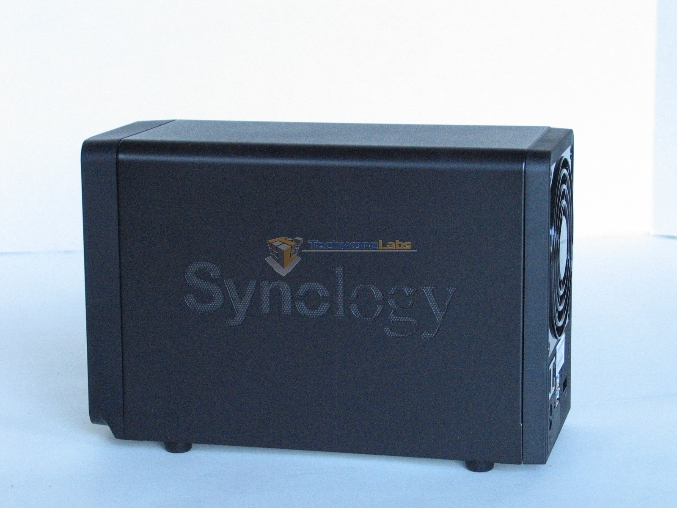 |
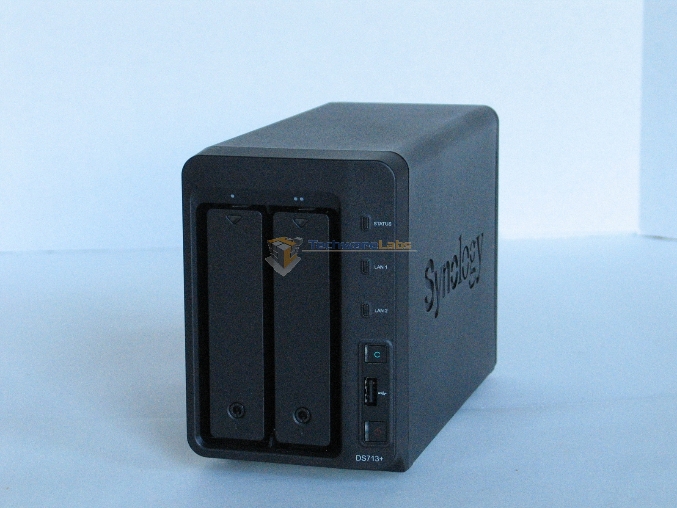
Painted in basic black, the exterior of the DS713+ is sober and functional. The drive bay latches are on the front, along with the majority of the status lights. The USB port and green connect button are designed to be used in tandem for quickly copying the contents of a thumb drive to a predetermined folder on the NAS.
 |
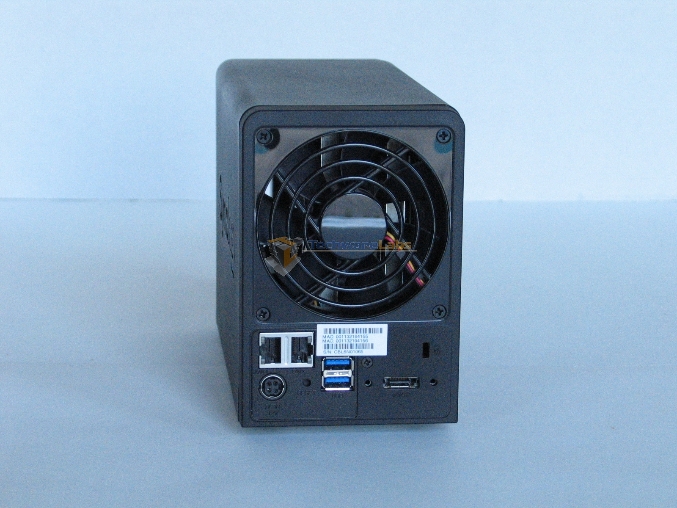 |
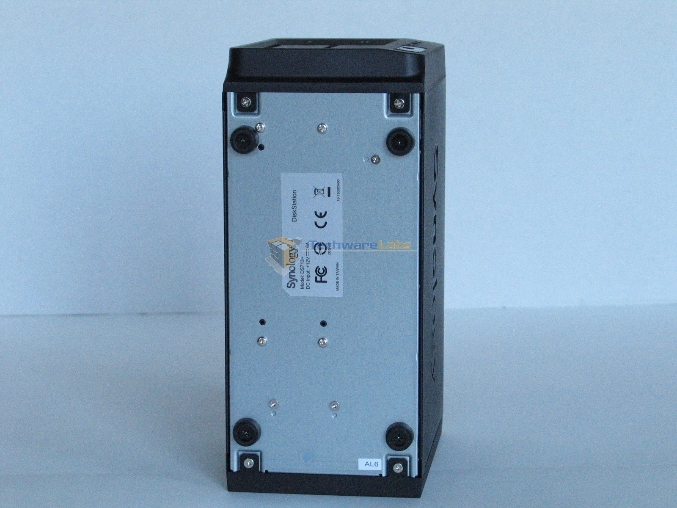
The back is where you’ll find the majority of the ports, along with the single cooling fan. Power and dual gigabit Ethernet ports share space with a pair of USB 3.0 SuperSpeed ports and a single eSATA port. The Kensington lock port is easily accessible; the same cannot be said for the reset button. With power and even a single USB Port connected, accessing that button becomes awkward.
 |
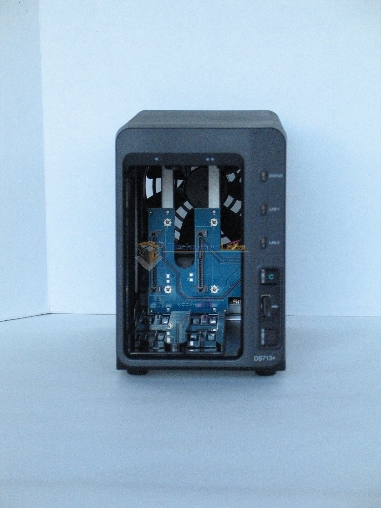 |
The drive latches are locked in place with a simple hex key, and once unlocked they pop out with a simple push to provide a handle for inserting and removing the drives. The bays are connected to the motherboard by means of a simple riser card.
 |
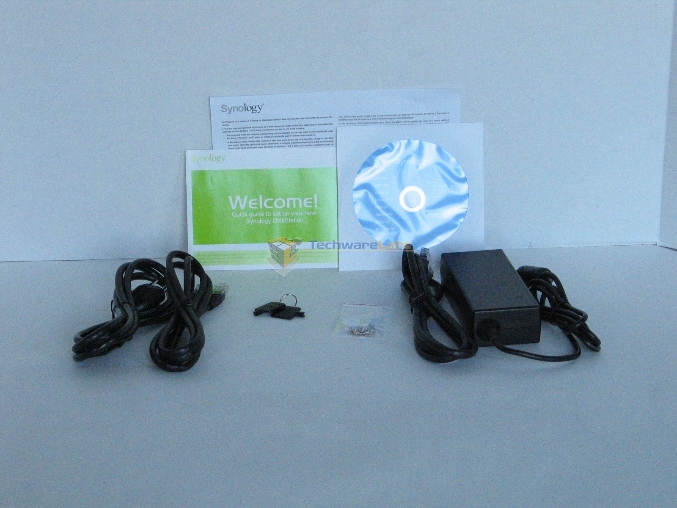 |
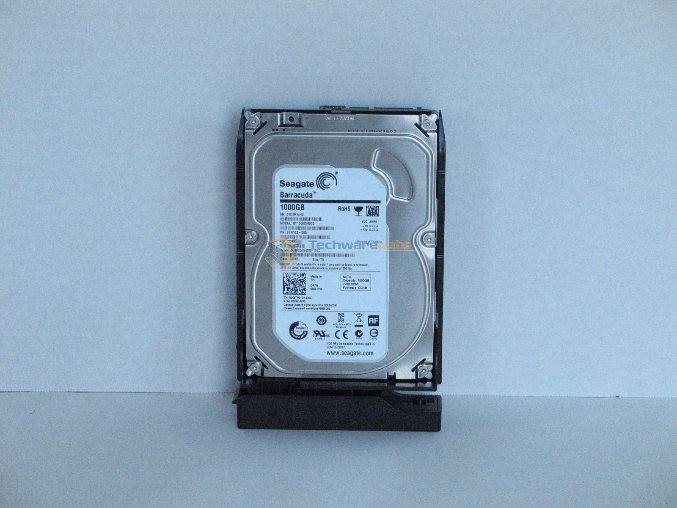
While the DS713+ normally comes empty, Synology has provided us with a pair of Seagate Barracuda drives to test it out with. Obviously, your results will vary somewhat depending on the drives you use with it. Aside from the obvious power brick, the unit comes with a pair of Cat 6 patch cables, a pair of hex keys, some spare drive screws, and the usual setup disk and documentation.
Software
The main thing that has always set Synology apart from its competition is its software. Their DSM software, which runs on a Linux kernel, provides not only the basic functionality of a NAS device, but an API for extending that functionality more or less arbitrarily.
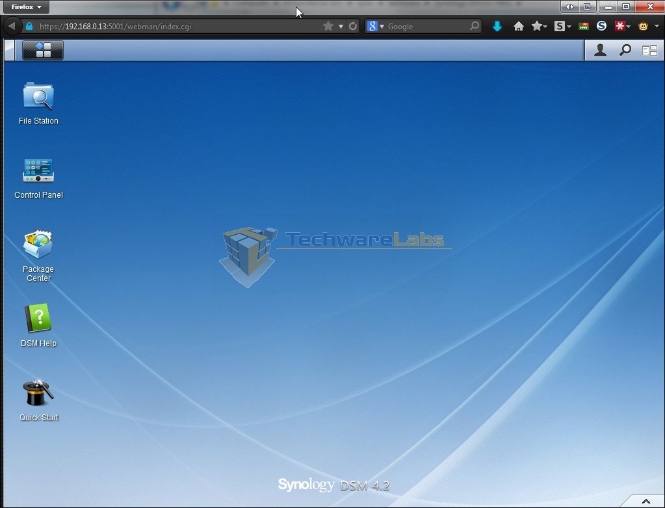
Once logged in to the web interface, this screen is the first thing that greets you. The resemblance to a desktop interface is intentional, it is obviously meant to be immediately familiar to anyone who is accustomed to working with Windows.
 |
 |
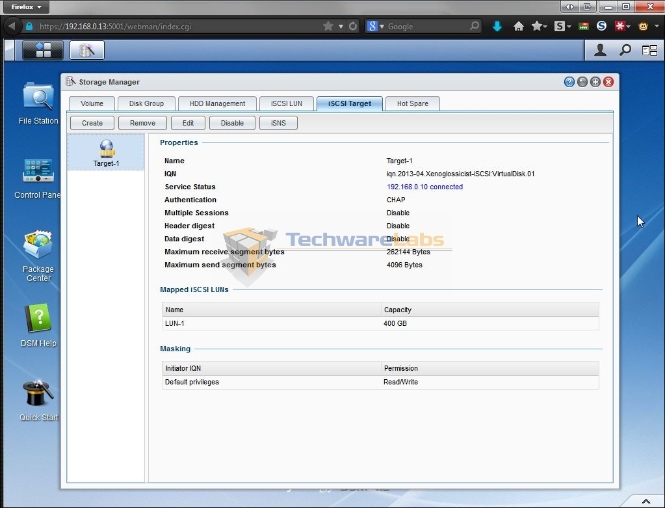 |
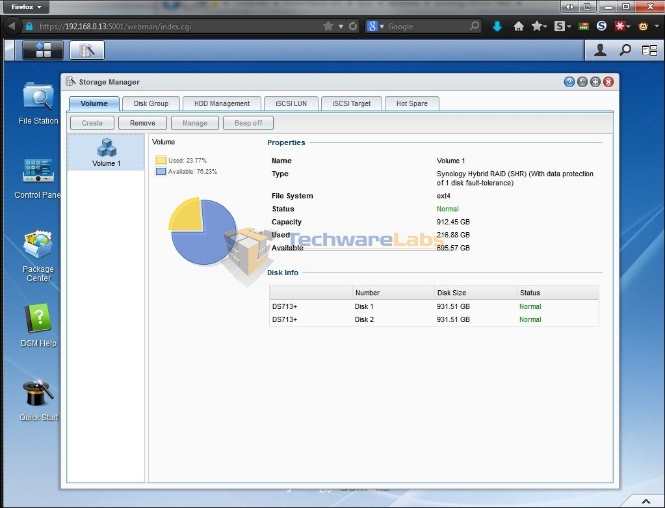
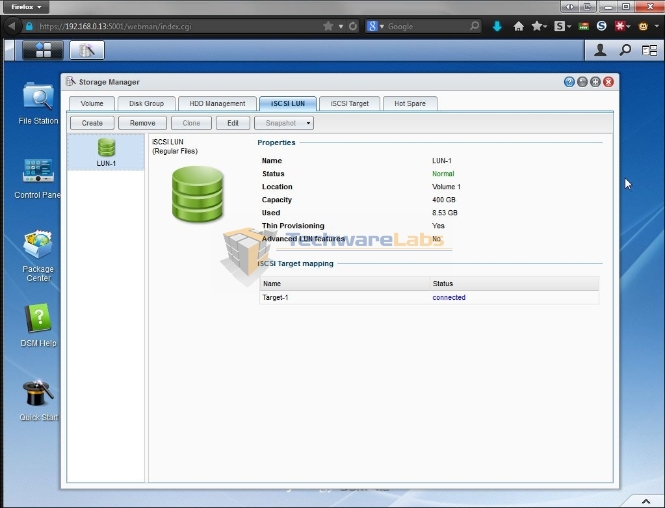
The Storage Manager is likely going to be your first stop. From this window, you can configure volumes and disk groups, create and map iSCSI targets, and designate disks as hot spares.
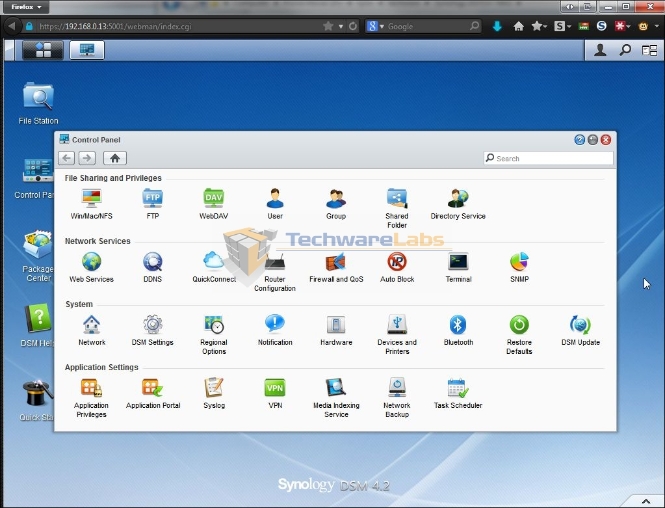
The Control Panel window, as you might expect, is where the bulk of the unit’s configuration lives. Configuration options are lumped into four main categories which can be thought of roughly as:
- Users and files
- Ports and filters
- Fiddly bits, and
- Application-specific settings
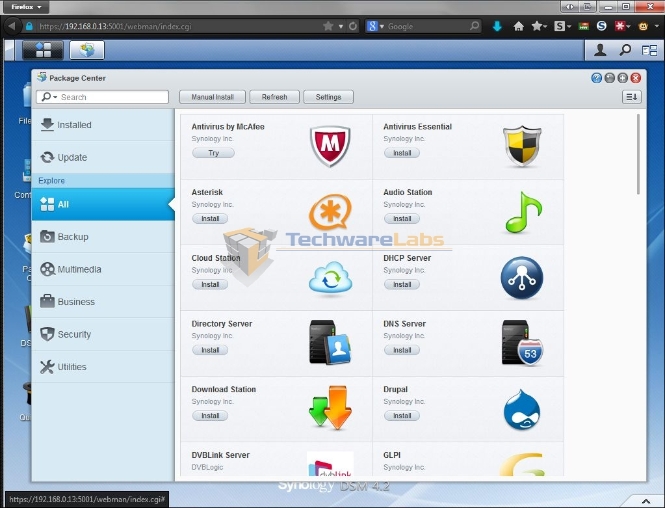
The Package Center is where you go to add in new functionality from third party applications. In addition to the expected backup and media streaming applications, several network and web service applications are available which allow the DS713+ to act as a server. While the DS713+’s Atom CPU would likely buckle under any significant load, it would be perfect for hosting a small internal project wiki or testing out a new content management system.
Speaking of testing limits, I found and ran an add-on package which is, to my knowledge, not available for any other brand of NAS device: a Minecraft server. While CPU and RAM requirements prevent this from being a practical substitute for a “real” server, the fact that this is even possible speaks to the flexibility of the DSM software.
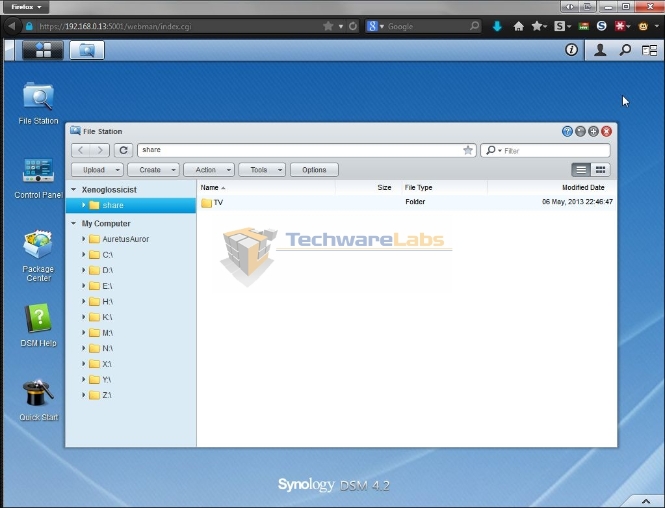
The File Station serves as a quick way to manage files and folders on the NAS from the web interface, as well as a way of uploading and downloading files without mounting shared folders. Also, CIFS shared folders from other machines on the network can be mapped to local folders on the unit, allowing it to serve as a concentrator for network shares in the absence of a Windows domain controller.
Benchmarking Discussion
Benchmarking a NAS is a bit odd; it perforce involves more than just a single test machine, and many of the usual drive benchmarking tools don’t function well over a network. Raw device access is not relevant, because you’re never talking to the drives directly. The performance of the client computer’s network stack becomes a relevant factor, as does the quality of the cables and switches linking the client and NAS together.
All of this became immediately relevant to me when I noticed some oddities in large file transfer tests. A file would transfer to the NAS quickly, but afterwards it would pause for several seconds at a time, sometimes even minutes, before moving on to the next one. I tried searching around the Synology user forums, thinking this might be a firmware issue or a misconfiguration on my part, but nothing relevant appeared.
Broadening my search to the wider web, I ran across this article from Intel, which I believe points out the problem. You can follow the link if you want a full technical breakdown and performance comparison, but the basic issue is a difference in assumptions between the designers of NTFS and the designers of Ext4.
NTFS, like many file systems before it, pre-allocates space for all files before writing them to disk. To help prevent fragmentation, when the driver is asked to write a file, it issues little one byte writes to the allocated space at 128k intervals to mark the space as taken. This acts as a hint to the NTFS driver that it should reserve that space for the file in question while the write buffer is filling. Ext4, the underlying file system on all Synology NAS devices, uses an allocate-on-flush strategy, which holds off on allocating space for file blocks until it has a buffer-full of data to write all at once. Thus, it skips those little one byte pre-writes, as they are no longer necessary.
The problem occurs when a client system, such as the Windows 7 CIFS client, assumes that the shared volume on the NAS is a NTFS system, and thus issues those one byte pre-writes. Since Ext4 doesn’t normally do pre-allocation, it assumes that those writes are valid data, and allocates space accordingly. Later on, when the actual data is written, it has to go back and allocate space again. This usually leads to increased fragmentation, as the blocks it would have used are now chopped up into alternating one byte and 127 byte stretches.
Unfortunately, there is no easy solution to this conflict. Windows doesn’t natively understand any modern file systems other than NTFS and exFAT, neither of which use allocate-on-flush. Amending the Windows CIFS client to solve this issue would likely require a far larger investment of programmer time than Microsoft is willing to make.
There are a couple of ways of getting around this issue, both of which have drawbacks. A third party program could be used to talk to the NAS over NFS, but this requires purchasing additional software and additional time spent configuring it. Another solution would be to create an iSCSI target on the NAS, connect to it with Windows’ built in iSCSI initiator, and create a NTFS volume on it as you would with a local disk. This is a fairly robust solution for single user scenarios, but it makes sharing files among multiple users much more complicated.
For the purposes of this review, I chose the latter solution, and ran all of the benchmarks twice: once on the CIFS network share and once on the iSCSI target. Please note that this issue is specific to Windows clients in most cases; Linux and Mac OS do not use CIFS by default, and neither NFS nor WebDAV display this behavior.
Benchmarks
Test System
| Processor | Intel Core i5 2300 @ 2.8GHz |
| Memory | 16GB DDR3 @ 1600MT/sec |
| Operating system | Windows 7 Enterprise, Service Pack 1 |
| Motherboard | ASRock Z77 Extreme 6 |
| Storage | Crucial C300 256GB SSD |
These tests were conducted on a gigabit Ethernet network run over Category 6 cabling and mediated by a consumer grade gateway router, which is reviewed here (link to review of Engenius router). While this did not allow me to test some of the more advanced networking features, such as link aggregation, it is typical of the network environment you would find in a home office or small office.
The NAS was configured with a single Synology Hybrid RAID volume spanning both drives; the iSCSI target was configured to be a file-based, thin-provisioned volume on top of that.
CrystalDiskMark
This benchmark program doesn’t provide a lot of detailed numbers to pore over; it doesn’t take very long to run either, so it’s great for getting a quick and dirty profile of the drive’s—or in this case, the array’s—performance.
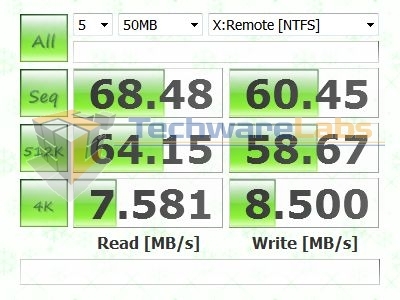
The performance numbers on the CIFS share are good, but not outstanding. Interestingly, the 4K random write speeds are just a little bit faster than the corresponding read speeds, though never by very much.
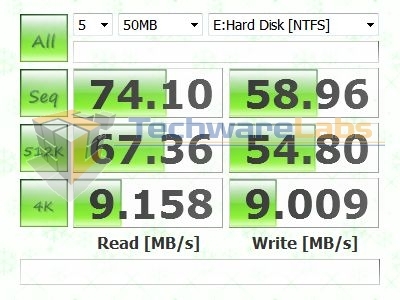
Running the same tests on the iSCSI LUN produced higher read speeds and lower write speeds; a difference to be sure, but not the unmitigated improvement I was expecting. The exception to this pattern was in the 4K tests again, which showed a marked improvement in read speeds and a marginal improvement in write speeds over the CIFS share.
Intel NAS Benchmark
The Intel NAS Benchmark program began its life as a profiling tool, and it shows. It provides no colorful graphs, nor any rankings. What it does provide, in abundance, is raw performance data under a variety of workloads. Here, we’ll be paring down a lot of the ancillary data and focusing on the throughput numbers, which are in all cases provided as MB/sec.
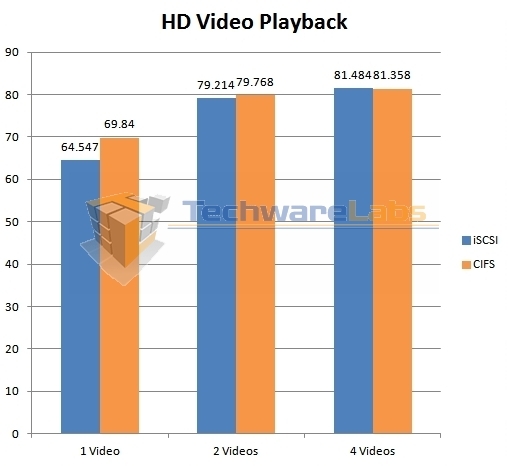
This set of benchmarks test the DS713+’s ability to stream HD video, one, two, and four videos at a time. Here the CIFS share enjoyed a slight lead in the one video test, though this all but vanishes once multiple streams are brought into play. Under this heavier load, the throughput stays in the vicinity of 80 MB/sec, which is more than sufficient for keeping multiple HD streams running.
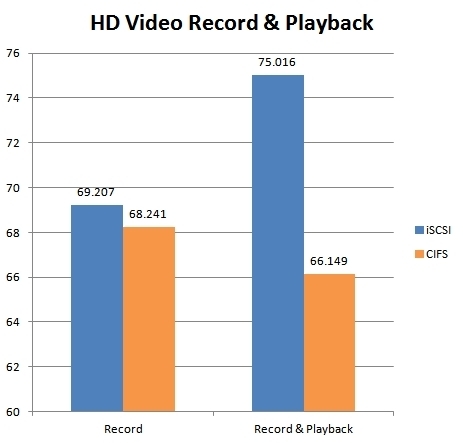
These benchmarks test the unit’s ability to record HD video streams with and without simultaneous playback, which is useful both for surveillance and for TiVo style media management from a live streaming source such as Twitch TV or a cable channel. The record-only test didn’t show much of a difference, but the simultaneous record-and-play test showed a gap of nearly 10 MB/sec between iSCSI and CIFS performance.
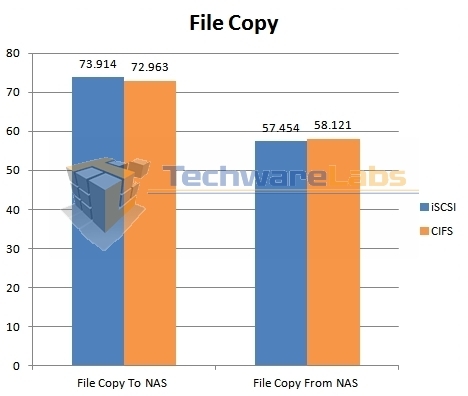
This pair of benchmarks utilizes a single 4 GB file, with a fairly large cluster size. Here, the differences are minimal at best. Strangely enough, the write operations (copy to) were faster than the read operations (copy from) by ~15 MB/sec, despite being large enough to overcome any RAM-based write cache on the NAS.
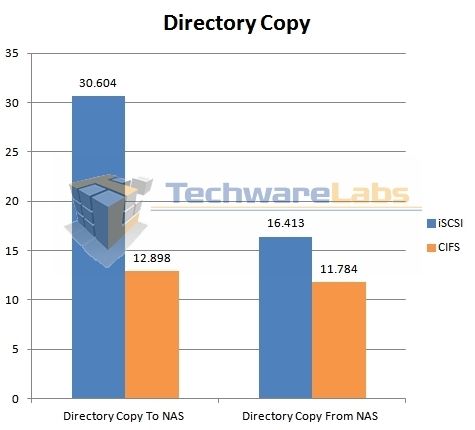
This benchmark, which transfers about 188 MB of data spread across 126 files, is where the differences started becoming more apparent. In the write test (copy to), the iSCSI share got more than double the performance of the CIFS share, while the read test came in with the iSCSI share showing a ~33% lead.
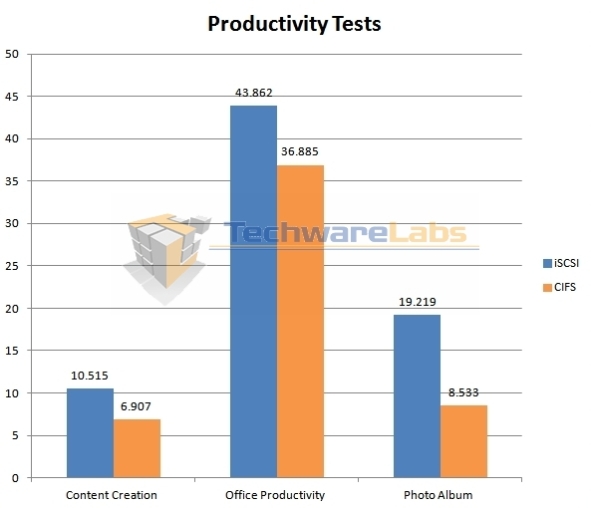
These benchmarks represent use of the DS713+ as a repository for files that are actively being worked on. The content creation bench is perhaps the most punishing of the three, consisting of rapid-fire, random access patterns that are ~95% discontiguous write operations. Office productivity measures, as you might expect, performance in a scenario where moderately-sized document files are being read and written at irregular intervals, with the whole file being processed at once. Photo album is similar to office productivity, save that the files are both smaller and more numerous, such as you’d find in a photo folder full of JPEG files. In all three cases, the iSCSI share showed a significant improvement in performance over the CIFS share, though as you’d expect, performance degrades in even the best case as reads and writes get more frequent and less contiguous.
TeraCopy
In a nod to more “real world” usage, I used TeraCopy to shuttle a couple of directories back and forth between the DS713+ and a client machine.
 |
 |
 |
 |
The first directory contained an install of the latest Ruby for Windows, which split 55 MB across ~2200 files. The read throughput was about 3.66 MB/sec for the CIFS share and 5.0 MB/sec for the iSCSI LUN. The difference in write performance was rather more pronounced, with the CIFS share managing about 1.53 MB/sec and the iSCSI LUN managing about 5.0 MB/sec.
 |
 |
 |
 |
The second directory contained several large HD movies, which split 11.95 GB across 15 files. The difference in read performance was negligible, with the CIFS share and iSCSI LUN managing 53.44 MB/sec and 57.18 MB/sec respectively. The write performance is where the problem showed up, with the CIFS share only managing an effective throughput of 5.06 MB/sec, while the iSCSI LUN maintained a much more respectable 63.07 MB/sec. These results were borne out with the default Windows file copy handler as well; I used TeraCopy mainly for recording total transfer times.
Thoughts and Conclusion
To be clear, my impression of the DS713+ is an overwhelmingly positive one. Setup is simple, functionality is robust, and performance is, on the whole, fairly solid. The one fly in the ointment is, as you might guess, the abnormally slow performance on large file writes over CIFS. This was honestly somewhat surprising to me, especially given the results of the “large file” tests in the synthetic benchmarks. As a control, I attempted the same file copy tests on a machine running Gentoo Linux with a fairly recent kernel revision (3.7.10), sharing multiple Ext4 volumes over Samba; it did not display this behavior. I can only speculate about the details, but clearly there is a fix for this behavior; implementing it in the next release of DSM should be a top priority for Synology’s engineering team.
Even with the performance issue, the DS713+ is a solid choice for SOHO users looking for a NAS device that can grow with their needs. The five bay expansion unit (sold separately) allows you to add more drives as your budget allows, and the Synology Hybrid RAID technology will integrate the new drives into the pool without the need to copy the data off and rebuild the array from scratch. If you would like the functionality of a “real server” for a small number of users without the hassle and expense of purchasing and setting up a full rackmount unit, the DS713+ is a great choice.


Ah, this is so important to me.. hope to have one real soon..