
Video Playback
 |
 |
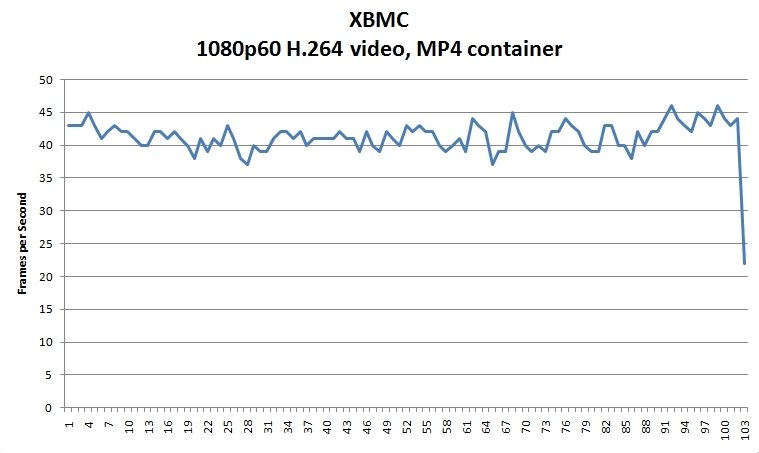 |
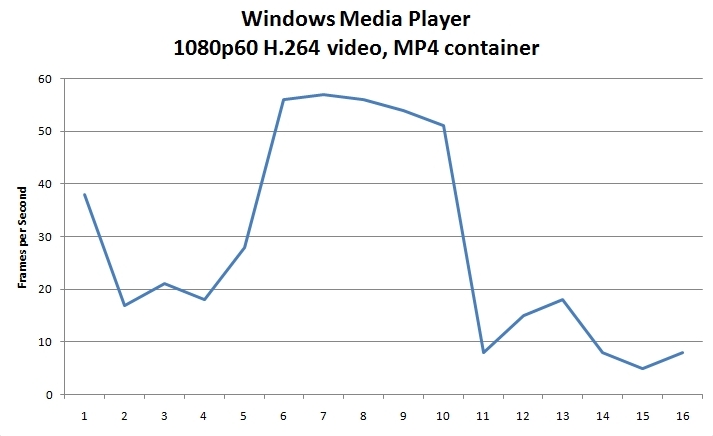
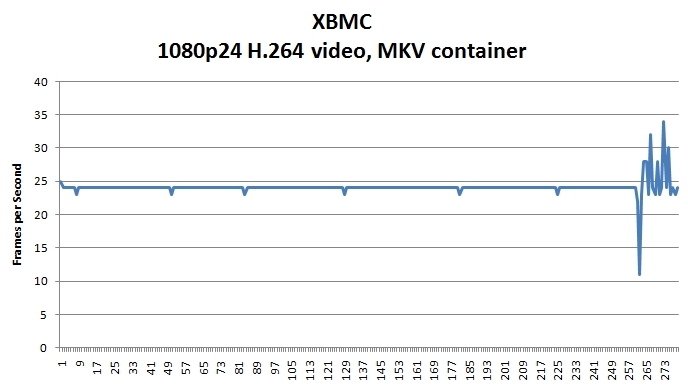
Getting video to play back with most players was surprisingly challenging, given the nature of the content. Even with a DirectShow filter installed, MKV files would not play back at all on Windows Media Player. Attempts to play our 1080p60 sample MP4 video resulted in the wildly fluctuating framerate you see here, followed by a crash to desktop. All is far from lost, however. XBMC, which supports both MKV and GPU accelerated video playback, managed our 1080p24 sample clip flawlessly, and even managed our 1080p60 clip with only minimal hitches in framerate.
Noise, Power Draw and Thermals
In use, the ZBOX Plus is utterly silent. I could hear a slight hum from the cooling fan if I put my ear right up to the grille, but the noise quickly faded to nothing from as little as 2 feet away. Fan noise did not increase at all when the system was under load. Tests with a Seasonic Power Angel revealed that the ZBOX draws about 10 watts at idle, and up to 19 watts at full load. Temperatures ranged from 48° C at idle to 61° C under load.
General Impressions
 |
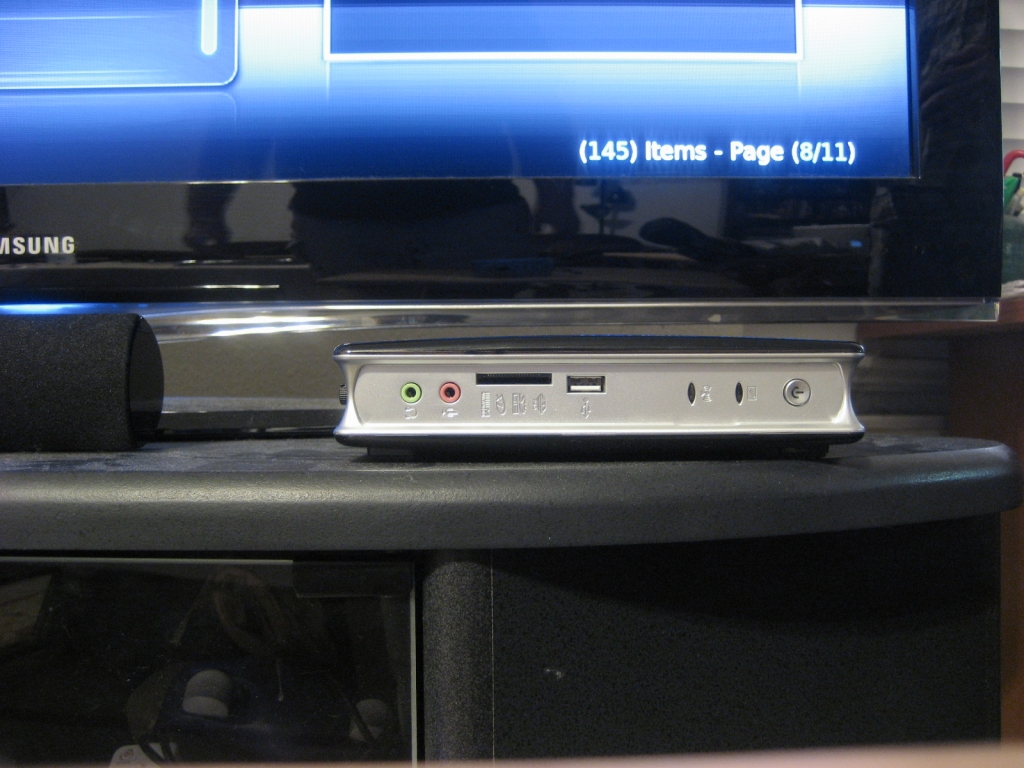 |
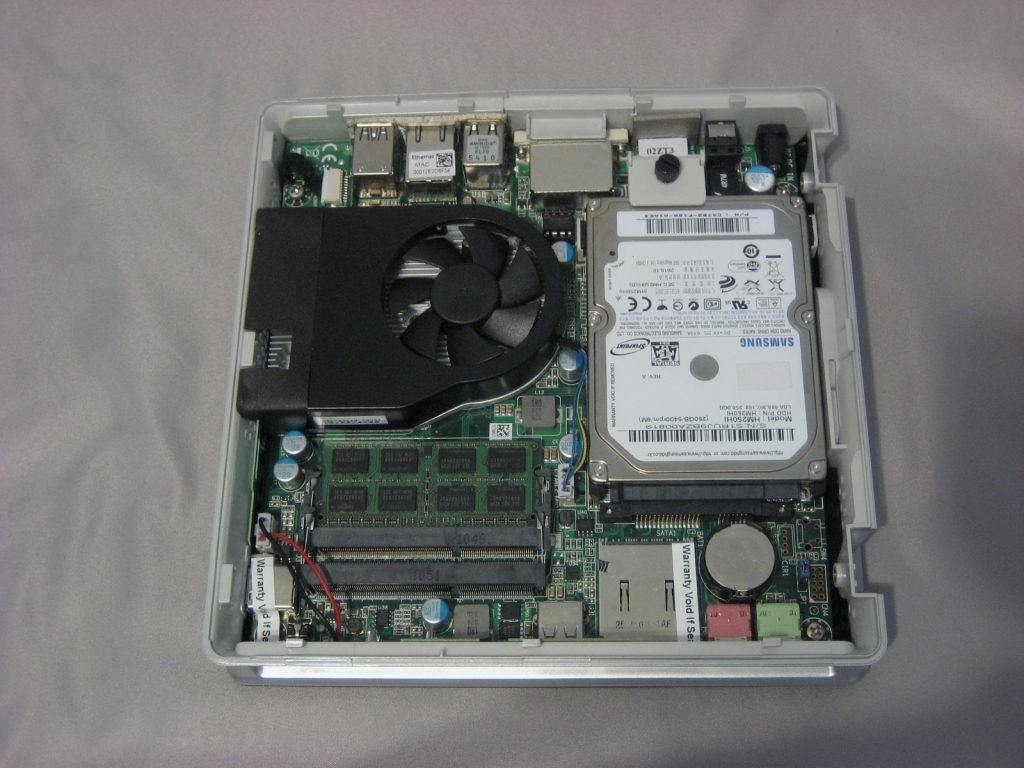
Getting the ZBOX Plus up and running was a simple, if not quick, process. Installing Windows 7 from a USB device proceeded without a hitch, and the driver CD autorun program made getting the correct drivers on a matter of running down a checklist. The driver install programs took a while to launch and run through their paces, and alt-tabbing to anything else would usually cause a delay of several seconds while the system swapped things in and out of active memory. Upgrading the RAM to 4gb or 8gb would doubtless improve the system’s performance–especially since this ram is partitioned out between the GPU and the rest of the system. A 7200rpm hard drive would also improve the system’s overall responsiveness, as well as data storage throughput. Upgrading either component is simple; the top panel attaches with two thumbscrews, and both the RAM and the hard drive are immediately accessible with the lid removed. The RAM modules simply pop in and out from the standard SODIMM sockets, and the hard drive can be removed after taking out one thumbscrew and the retention bracket.
As mentioned earlier, the ZBOX is extremely quiet in use, even under load. Visually it is not so subdued, with bright power, HDD and network activity LEDs competing with a green glowing ring on the top panel for visual attention. The ring light can be turned off in BIOS, but subduing the status LEDs will require taping over them. Given the intended purpose of this machine, a diffuser on these lights would have been welcome.
One accessory is notable by its lack: the remote. The ZBOX plus includes no remote control, nor is one offered as an accessory. There are a number of Windows compatible remotes out there that can be attached via USB, but not including one in the box is inconvenient for a device positioned as a HTPC.
Another thing worth mentioning is the included VESA mount kit. It works with 75mm and 100mm VESA mounts, which you’ll find on most LCD monitors, and lets you attach the ZBOX firmly to the back of a monitor or small-ish TV. While the main market for this device is clearly HTPC use with larger TVs, the VESA mount opens up an intriguing second option: making a DIY all-in-one desktop. All the ports are accessible when the ZBOX is placed in the mount, and a simple pushbutton release lets you take it out for repairs, upgrades, or simply using it temporarily with another display.
Conclusion
The ZBOX-AD02-PLUS sets out to do one thing: provide 1080p video playback with minimal power draw and as little heat and noise output as possible. In that regard, it succeeds admirably. As a more general purpose system it is not without its drawbacks, but it performs acceptably well for a $300 PC (average online price at time of publication). If you’re looking for a cheap, capable machine for video playback, the ZBOX-AD02-PLUS is hard to beat.
Pros
- Small and quiet
- Low power draw
- Stutter-free playback of 1080p content
- Easily upgradeable
Cons
- Low included memory, Though standard for this type of product and pricepoint.
- No internal optical drive, Though standard for this type of product.
- No remote control
- Excessively bright status LEDs

[…] ZOTAC ZBOX Plus – Media PC @ TechwareLabs […]
[…] ZOTAC ZBOX Plus Media PC @ TechwareLabs […]
[…] rwlabs Zotac A75-ITX WiFi vs ASUS F1A75-I Deluxe Mini-ITX Motherboards Review @ HardwareHeaven.com ZOTAC ZBOX Plus – Media PC @ TechwareLabs Arctic Cooling Freezer 13 PRO Review @ HardwareLOOK Antec LanBoy Air Review @ […]
[…] ZOTAC ZBOX Plus – Media PC @ TechwareLabs […]
[…] ZOTAC ZBOX Plus – Media PC @ TechwareLabs […]