 |
Introduction:
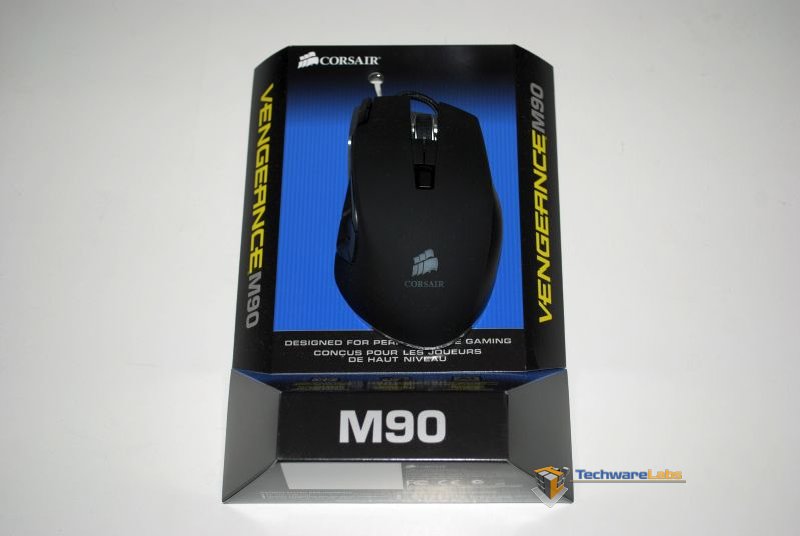
Corsair is a name that comes to mind when you think of RAM or SSDs and are well known for the quality of their products. The Vengeance M90 is a good first product geared toward MMO and RTS gaming. They also have a sister product the M60 geared toward FPS games.
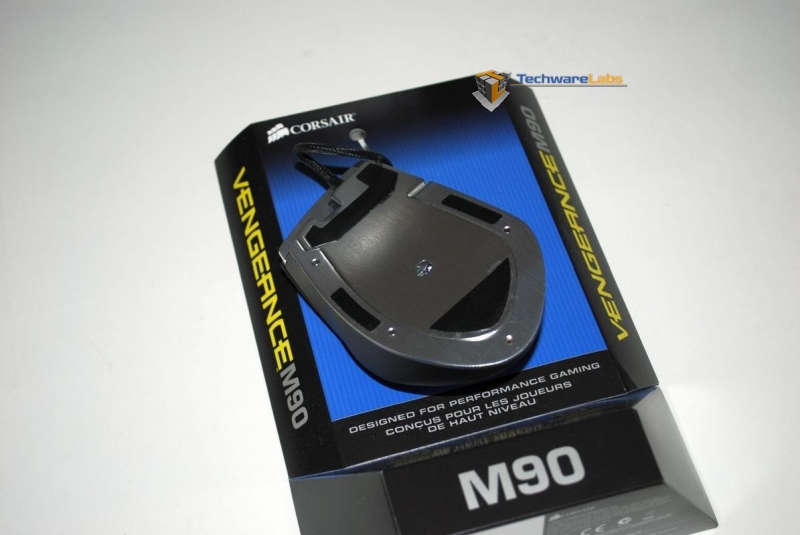
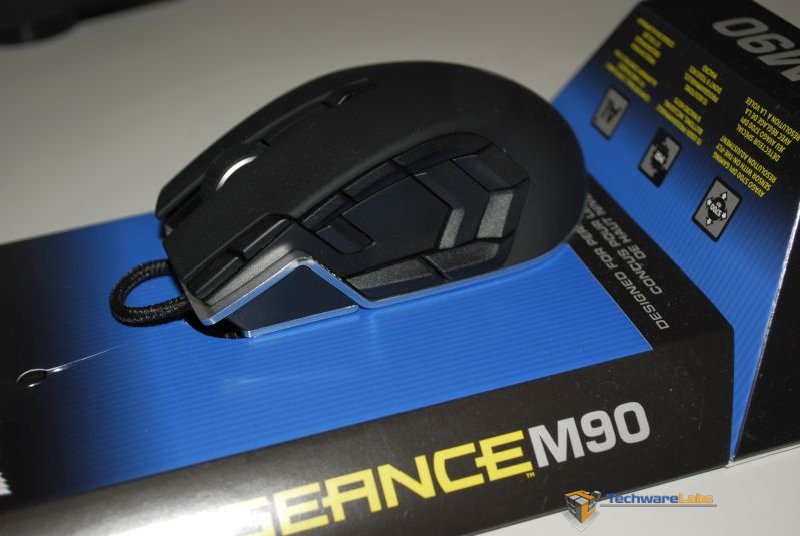
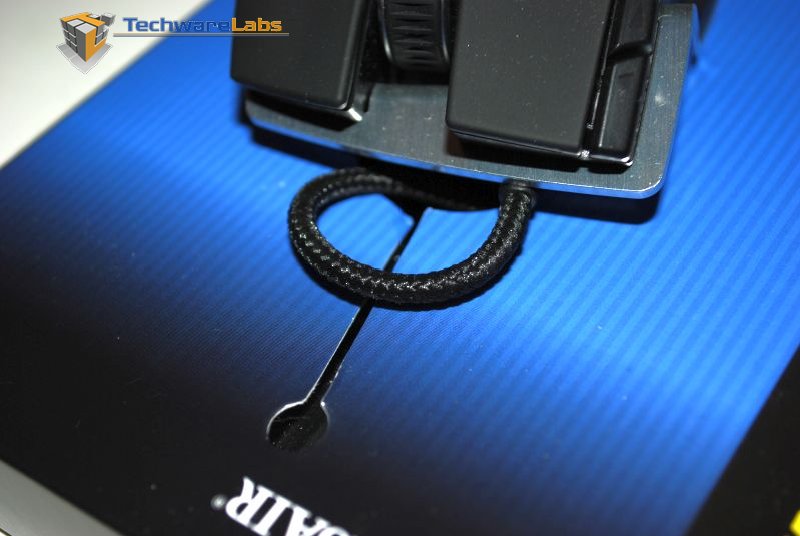
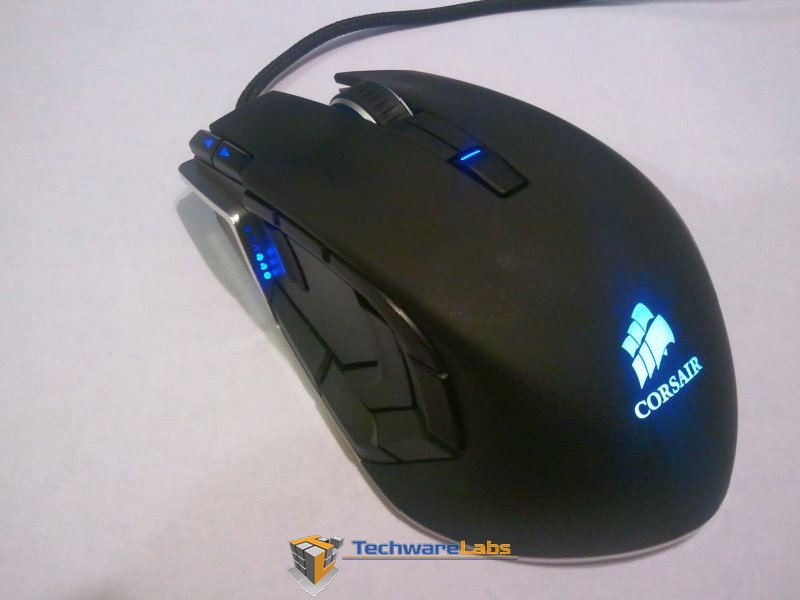
The M90 has an aluminum metal frame\base that gives it solid feel without a lot of weight. The brushed aluminum also is a nice contrast to the rugged black plastic. The mouse has a nice ergonomic shape that makes using the mouse for long periods of time comfortable. The scroll wheel is solid aluminum with a rubber scroll surface that provides good control and feel. The braided USB cord is a nice touch to complete this package. A quick look on their website, leads me to believe there is no left handed version.
 |
 |
 |
 |
|
Here is a quick rundown on the technical specifications:
- 5700 Max DPI adjustable in increments of 100
- 1000/500/25/125Hz (1/2/4/8msec) response times
- 30g Max Acceleration
- 165 inches per second Max speed
- Adjustable lift distance with 5 selectable levels to fit your play style
Surface quality detection
15 programmable buttons (9 of them for use with your thumb)
48KB of on-board memory for storing up to six “on the go” profiles with active profile LED
1.8m lightweight non-tangle USB cable
Software:
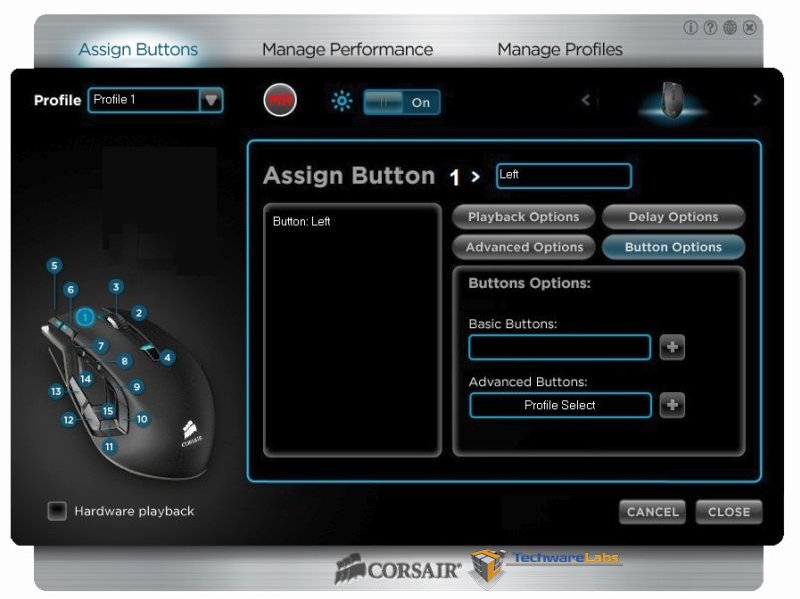
The M90 Quickstart guide points you to their website corsair.com/vengeanceM90 to download the latest version of their mouse configuration software. When downloading the software I noticed it is labeled as “Beta”. I know this is semantics, but if I am going to buy a product I prefer for the required software download to be final. This is not a slam for Corsair, but we as consumers need to speak up as we are seeing this as a more common offense with companies. They could easily reword the name of the install, because it is not mentioned in the software and with the features I used it felt like a finished product. The software is broken down into 3 tabs “Assign Buttons”, “Manage Performance” and “Manage Profiles”.
Assign Buttons:
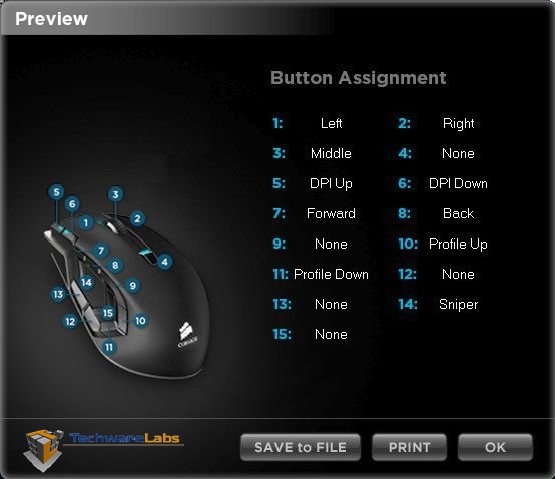
On this tab you have the flexibility to program each of the 15 buttons with one of the special mouse options or a “Macro” of your choice. There are also some advanced options like basic commands (cut, copy, paste, cut, select all, find, print and save) or advanced commands (close window, lock PC, Open explorer, run, show desktop or launch program). With macros you can have a combination of advanced options and keyboard keys. I was impressed that the software allowed me to assign any key pressed from my keyboard (even the special media keys) into a macro.
 |
Manage Performance:
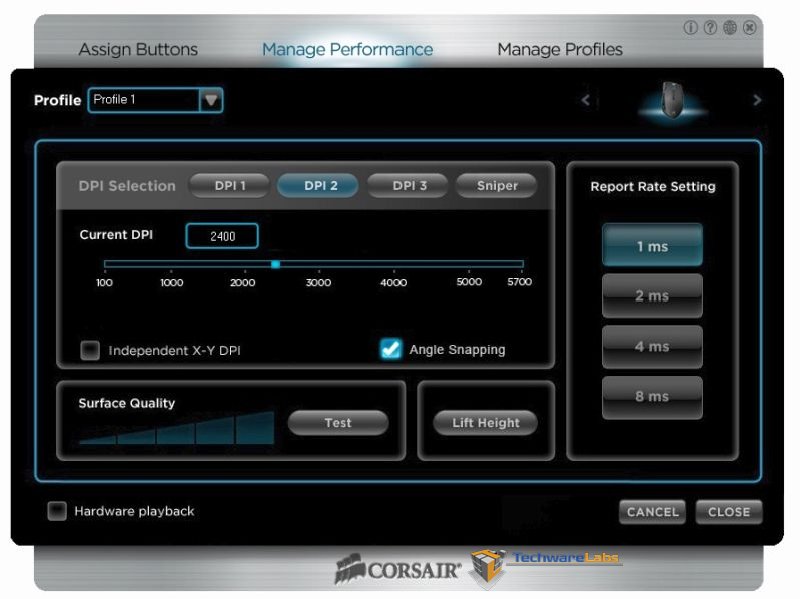
This tab allows you to set the mouse response by allowing you to assign 4 different DPI settings per
profile. The DPI settings can be used for your typical “Low”, “Medium” and “High”. To change between
the different settings, you would have to assign at least 1buttons to switch DPI settings, or 2 for up and
down. The last DPI setting is a special “Sniper” DPI that can be activated by holding down any button
you assign as the Sniper button. Once the button is released the DPI settings returns back to the one
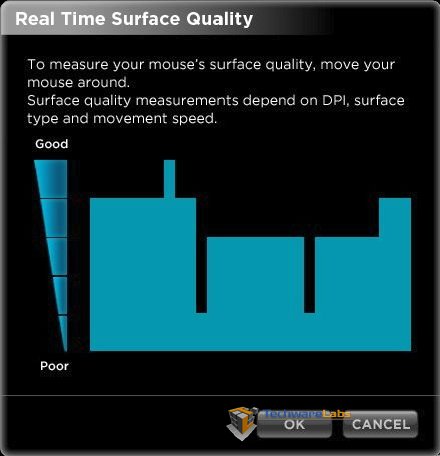
it was on. You can also set the report rate (1/2/4/8 ms) and desired mouse lift distance to fit your play
style. There is also a tool that allows you to measure the mouse’s surface quality under the mouse.
This gave me the idea to test different areas around me; my computer desk scored 4, the arm of my
coach and my leg 3, glass gave me a 3 but it did not track well (this is not a shock and Corsair does not
claim that it will work on glass). Every surface other than glass performed very well regardless of what
the surface quality reported giving a professional response.
 |
 |
Manage Profiles:
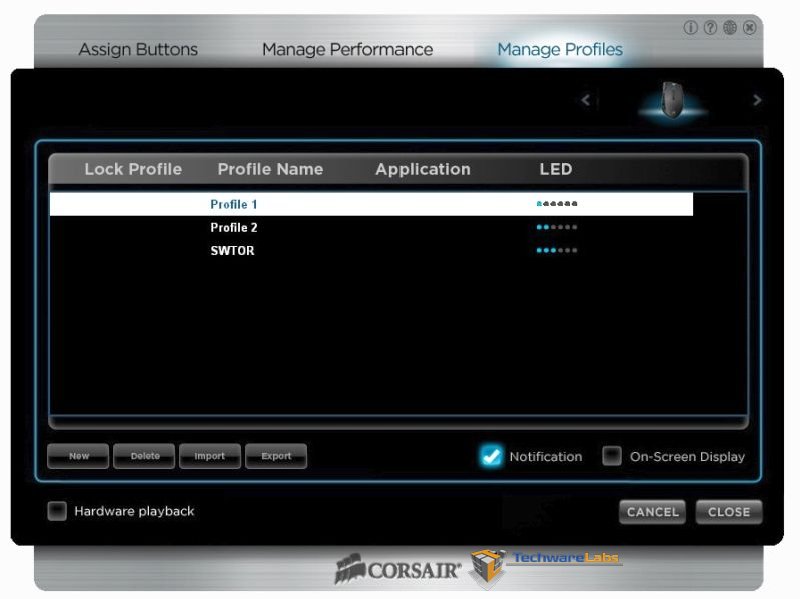
When managing profiles you can choose to have software or hardware playback. Software playback requires you to have the software installed, but allows you to have 50 profiles. Hardware profiles are recorded to the mouse but you are limited to 6 profiles, with this you get visual feedback from the mouse to let you know which hardware profile the mouse is using. To switch between hardware profiles you have to assign 1 button in each profile to switch between them or 2 for up and down, just like the DPI settings. This is not explained very well in the manual and I spent a lot of time trying to figure out why the mouse would not switch between hardware profiles. Corsair does provide a download with 11 predefined profiles. This is a nice start to give you an idea on how to configure the mouse.
 |
 |
One problem I had with the software would be its learning curve. I tried to use it without reading the downloadable Vengeance M90 Software Users Guide and found myself stumbling through the software until I took the time to read specific sections of what I was trying to do. Hopefully they will correct this by adding some wizards or help text for some of the not so user friendly functions in a future software version.
If you don’t like to read manuals, I did find a quick “software screencast” on their website that will help give you some of the secrets to programming the mouse.
|
USE:
After exclusively using this mouse for 2 weeks and 80+ hours, for both work and fun, I can honestly say this mouse is very comfortable to use and the hardware profiles would be my choice. My thumb fits comfortably on the side within all the buttons without accidently pressing any of them. I do not have a small hand, but I noticed with the way I hold the mouse I had to stretch for the default DPI up button and some of the thumb buttons. Also, when pressing some of the thumb buttons I found myself moving the mouse more than I would have liked, however this could be a learning curve issue for me trying to acclimate to the mouse. One of the nice things about the hardware profile was the ability to control the mouse on computers where I had not installed the software. I was even able to use this mouse in a Linux operating system and could see myself creating a hardware profile for that. With all of the mouse buttons being programmable this gives you the ability to move the mouse control buttons where you like them and not where the vendor mandates them like other gaming mice. This is nice as you could put move the mouse features to the buttons you find hard to reach allowing you to put the gaming buttons where your hand reaches the easiest. If you have to use 2-4 buttons for control, this still leaves you 11+ buttons to use in your various games. If you find yourself needing all 15 buttons for some extreme gaming, you can always use software profiles to accomplish this.
Conclusion:
If you do not have a gaming mouse, you may want to consider adding this mouse to your arsenal. Its
flexibility to program “Macros” will give you an edge in MMO and RTS gaming. For Corsair’s first volley
into the gaming mouse market, the Corsair M90 is a good competitor to some of the other mice I have
seen. Since the K90 keyboard shares the same software with the M90, I would expect using them
together to be a good pairing.
One funny thing I noticed was the video on their web site describes using the M90 for use with the
MMO that all other are compared against (World of Warcraft). But of the 11 profiles templates created
for the mouse, not one of them was for this MMO they were targeting in their video.
I did find a nice blog (Vengeance M90 Laser Gaming Mouse Gaming Profiles) on the Corsair website from
the guy who created the profiles for the M90. This blog gives a good breakdown on how the developer
dissects the mouse for creating the different profiles.
 |

[…] Corsair Vengeance M90 Gaming Mouse Review @ TechwareLabs […]
[…] Corsair Vengeance M90 Gaming Mouse Review @ TechwareLabs […]
[…] Corsair Vengeance M90 Gaming Mouse Review @ TechwareLabs Shortlink: […]
[…] Corsair Vengeance M90 Gaming Mouse Review @ TechwareLabs […]
[…] Via Techware Labs […]
[…] Mouse @ Legit Reviews Corsair Vengeance M60 Mouse @ ThinkComputers Corsair Vengeance M90 Mouse @ TechwareLabs ROCCAT Kone Plus Max Mosue […]