All those juicy specs are nice but what good is it all without the remaining system parts. I chose to create a low priced LAN box, I decided this because this board is ideally suited for this purpose and I was curious how much that PCI-e 16x slot running at 4x would hamper a decent dedicated graphics card.
| Processor | Core2Duo E7500 @ 2.94ghz
( I chose this for several reasons namely it was the best performing Intel processor for the price < 100) |
| Ram | 4GB DDR2 OCZ High Performance SLI memory |
| Hard Drive | 250gb Segate SATA drive |
| Video Card | 512mb 8800GT Nvidia graphics card. |
| Chassis | SilverStone’s Sugo SG04-FH case
( A small form factor case, awesome size and portability which is excellent for a LAN box, check back for a review on it soon!) |
| Power Supply | Silent Pro 700 Power supply I splurged a little on the power supply because I wanted a modular cable system |
| Operating System | Windows 7 |
|
|
|
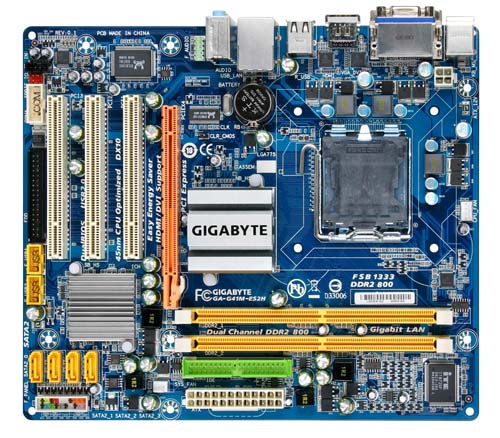
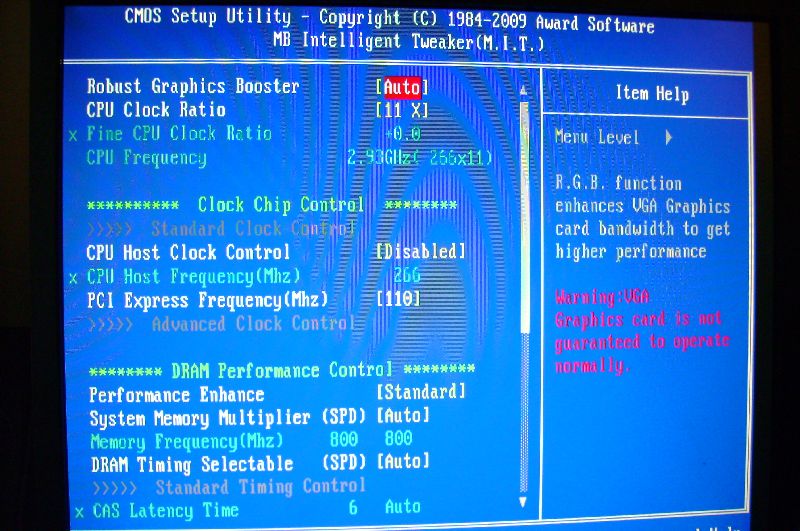
Booting the machine up was flawless, opening up the BIOS I was a extremely surprised at the amount of customizability and performance enhancement features available.
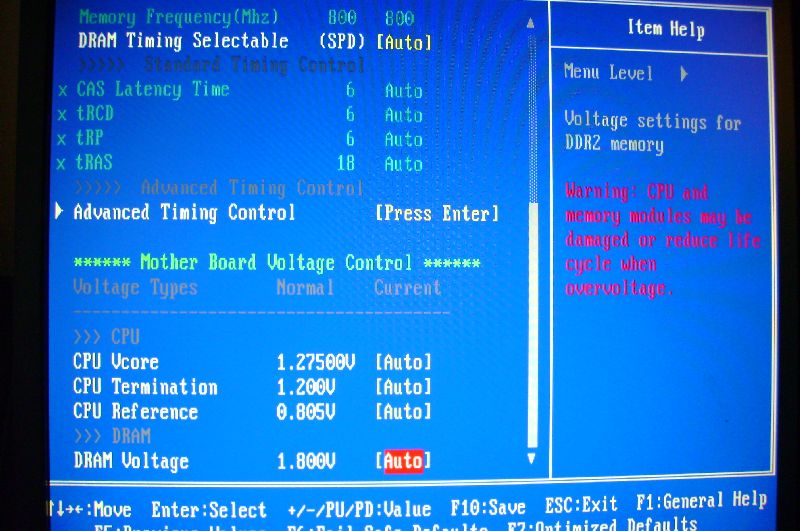
Inside the BIOS Gigabyte offered the “M.I.T” or “MB Intelligent Tweaker” which houses all sorts of fun settings for tweaking your performance everything from overclocking your CPU to adjusting ram latency and voltage. basically all the overclocking features you would expect from a full power full sized motherboard this left me very surprised because at first glance this appears to be a budget board especially with only a 8x PCI-e slot. It would be good to note that inside the “M.I.T” there are options to overclock the PCI-e bus which will provide a little bit of a performance increase to your PCI-e cards. ( Note: PCI-e Devices are not guaranteed to operate normally if frequency is set higher than the 100Mhz default)
|
|
|

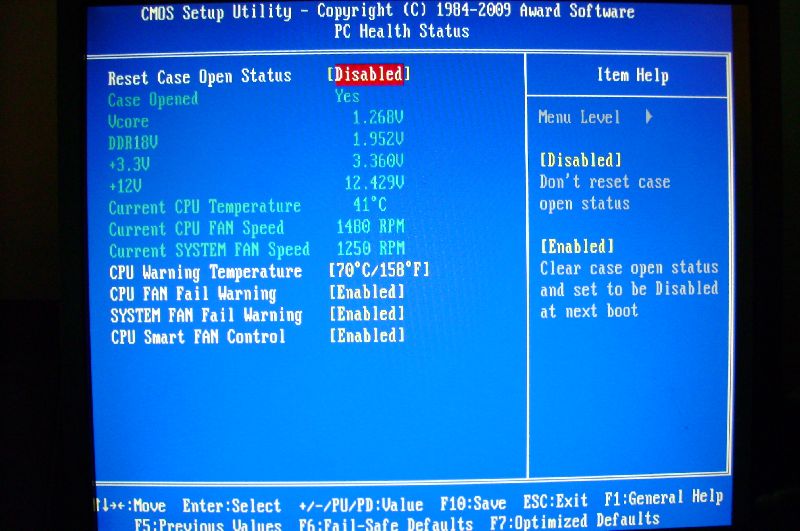
The other features that complement the optimizing goodness of the M.I.T are the standard set of BIOS features you would expect all motherboards to have like setting your drives master slave functionality as well as setting passwords, boot order, and power management. Checking the PC health tab opens the ability to see your current temperature and fan settings as well as setting fan failure alarms and high temperature alarms.
 |
 |

[…] TechwareLabs checks out the Gigabyte – GA-G41M-ES2H Micro ATX motherboard […]
[…] – Jetway Atom-GM1-330-LF Motherboard Video Review @ eTeknix – Gigabyte GA-G41M-ES2H Micro ATX motherboard @ Techware Labs […]
[…] Gigabyte – GA-G41M-ES2H Micro ATX motherboard @ TechwareLabs […]
[…] Gigabyte – GA-G41M-ES2H Micro ATX motherboard @ TechwareLabs […]
[…] Gigabyte – GA-G41M-ES2H Micro ATX motherboard @ TechwareLabs […]
[…] […]
[…] link Bookmark: […]
[…] techwarelabs reviews the Gigabyte GA-G41M-ES2H Micro ATX motherboard […]
Social comments and analytics for this post…
This post was mentioned on Twitter by BigTGows: Review: Gigabyte – GA-G41M-ES2H Micro ATX motherboard – http://bit.ly/9AGDh…
[…] This post was mentioned on Twitter by ChrisTWL, Ian_TWL, willhalsteadTWL, Dan Shannon, Michael Lynch and others. Michael Lynch said: Review: Gigabyte – GA-G41M-ES2H Micro ATX motherboard – http://bit.ly/9AGDh […]