Setup & Installation:
 |
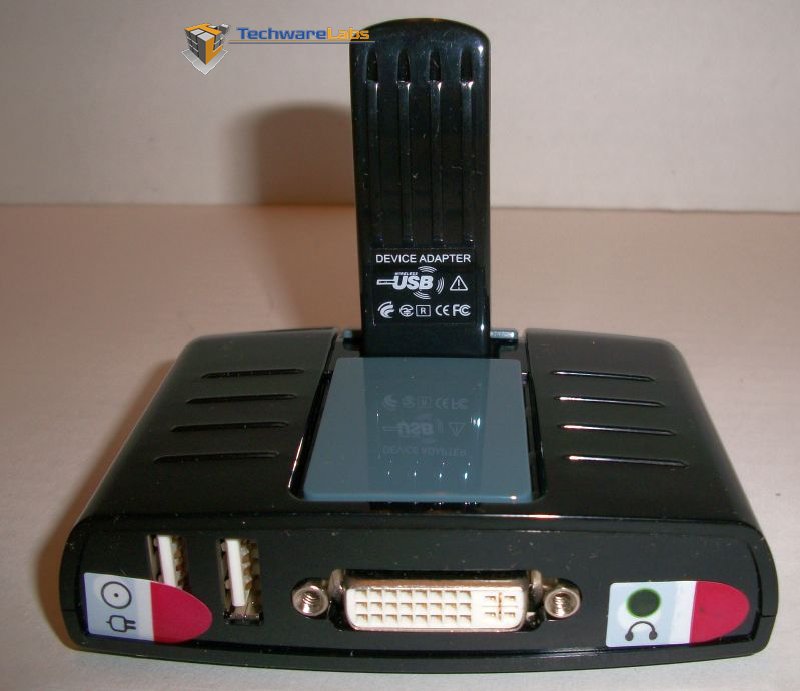 |
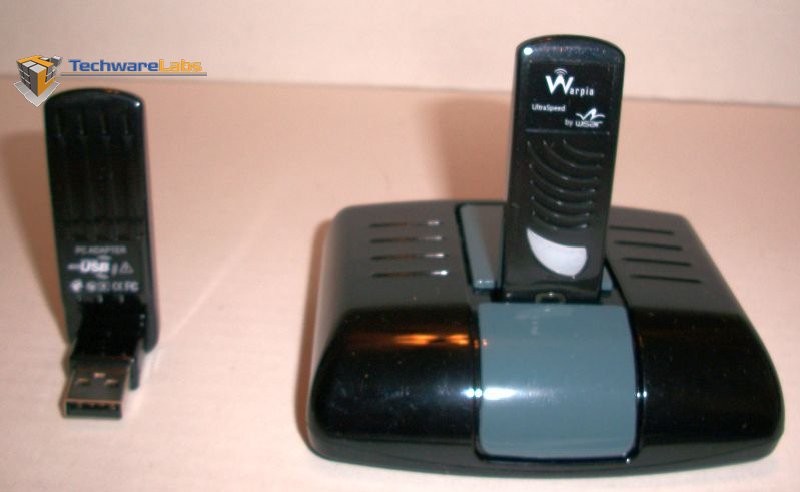
| Pretty clean look of the Easy Dock SWP220 | Very uncomplicated back of the Easy Dock SWP220 |
After taking a look at the Getting Started Booklet I must admit I was worried that these instructions might be too simple and seemed to only cover those customers with computers running a Windows Operating System. I used the Installation Disc to install the device drivers for the Wireless dongles first on my friends’ Dell Laptop running Windows 7 and was met by a very long installation time for such a device. After it was installed on the laptop I went to do the same for my Apple MacBook. I was disturbed to see no additional support information on the Disc and only Windows compatible software. I then just plugged the dongle in to see if it would be automatically recognized and was rather underwhelmed when it was not. The box says that this device is Apple compatible.
 |
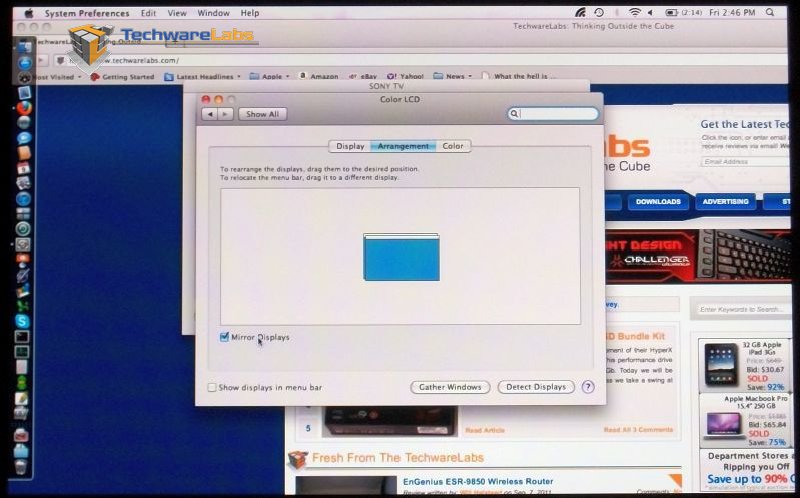 |
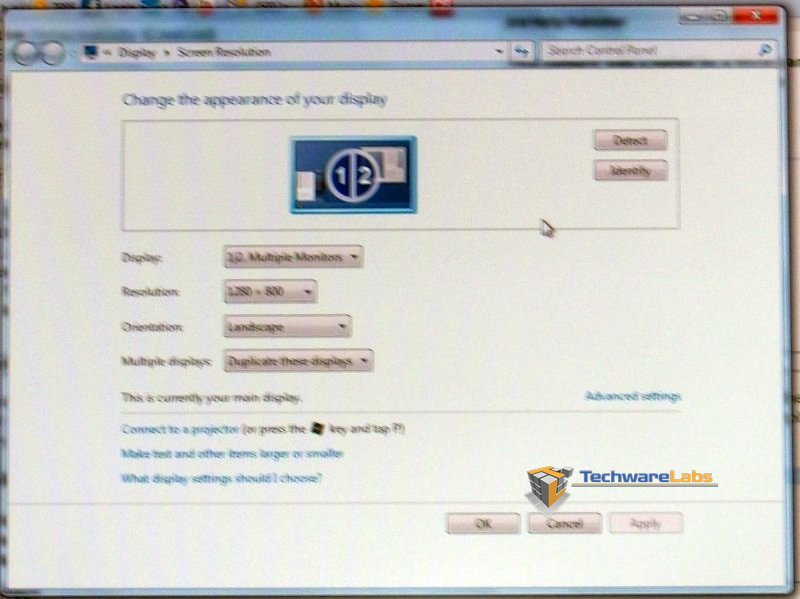
| Screen setup for a PC | Screen setup on a MAC |
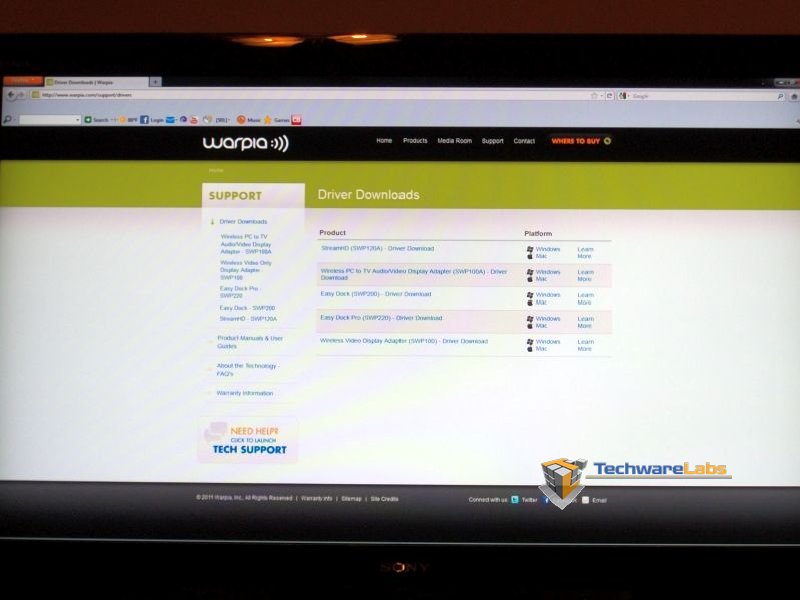
The Warpia site to did not have any drivers for Apple device drivers, the site did note that the Mac OS X should automatically detect the dongle. Our Apple Mac book did not detect the dongle and the Getting Started guide failed to mention it as well. I also installed the software to my Personal Computer just to cover the hypothetical situation where one may not want to run a physical cable between their monitor and computer. I also noted that while the hub can support a keyboard mouse and keyboard I would personally recommend wireless versions to use that do not require additional drivers to operate. Otherwise it is just easier to use the keyboard and/or mouse on the laptop itself, which should be next to you in order to take advantage of the one benefit this device offers.
 |
Testing:
The circumstances where such a device is useful are quite finite in number. This device only transmits data from a laptop or personal computer wirelessly to a VGA or DVI capable television or monitor. Additionally, I tested this device with an antiquated Dell laptop, my Black MacBook Intel Core Duo, and my Personal Computer. All three displayed some commonalities with this device: painfully long installation times for the software. That is, if you are using a Windows-based machine. Should you own an Apple computer then you will need to download the device software from the Warpia support site. This is despite the claim that Apple devices will automatically detect and use the dongles.
Once you have both dongles updated and the proper software installed on your machine you have free reign to make use of wireless multi-media. Should you decide to mirror your screens please note that your maximum resolution is limited to what your laptop can handle, whereas by extending your desktop you can achieve a resolution of up to 1920 x 1080. I did so with my 42” Sony Bravia HDTV.
Warpia makes a fairly bold claim that this device can stream High Definition without difficulty. That means 1080p video, not just 720p. Given what I had already experienced I had my doubts that such a statement was true. I was pleasantly surprised to be mistaken at first. I ran hours of High Definition video off of YouTube watching StarCraft II HD action replays with commentators. At first it seemed to stream with little to no visual lag or choppiness. The only time I encountered a hiccup was when transitioning an object from one display to the other. Unfortunately, this did not last as I continued to watch different High Definition videos streaming from YouTube.

[…] If you would like to read the review, please head over to TechwareLabs.com […]
[…] Warpia Easy Dock Pro SWP220 @ TechwareLabs […]
[…] Via TechwareLabs […]
[…] Reviews hooks up with the Scosche reVOLT c2 Dual USB Car ChargerTechwareLabs examines the Warpia Easy Dock Pro SWP220eTeknix shares its Gigabyte GA-Z77M-D3H Z77 MotherboardHardwareLOOK spends some time with the Icy […]
[…] Warpia Easy Dock Pro SWP220 @ TechwareLabs […]
[…] Warpia Easy Dock Pro SWP220 @ TechwareLabs […]
[…] Warpia Easy Dock Pro SWP220 @ TechwareLabs […]