Packaging:
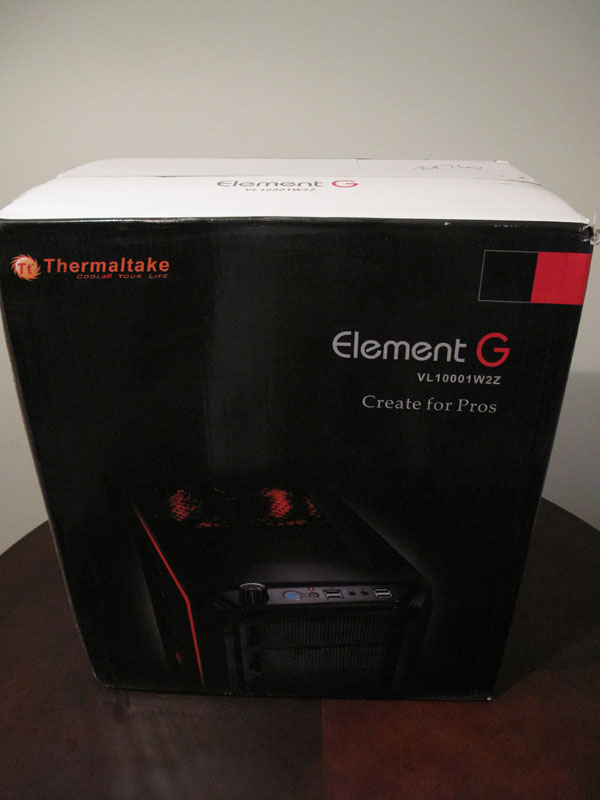
The box is pretty standard, with a picture of the case on the front, along with the Thermaltake logo. There is a lot of information about the case on the back of the box, including fan sizes and information on the structure of the case. The sides of the box are also loaded with information, one side with features, and the other with specifications. The box also has holes punched out on the sides for easy carrying. This was a welcome surprise that made the case a lot easier to get up the stairs and into my apartment.
 |
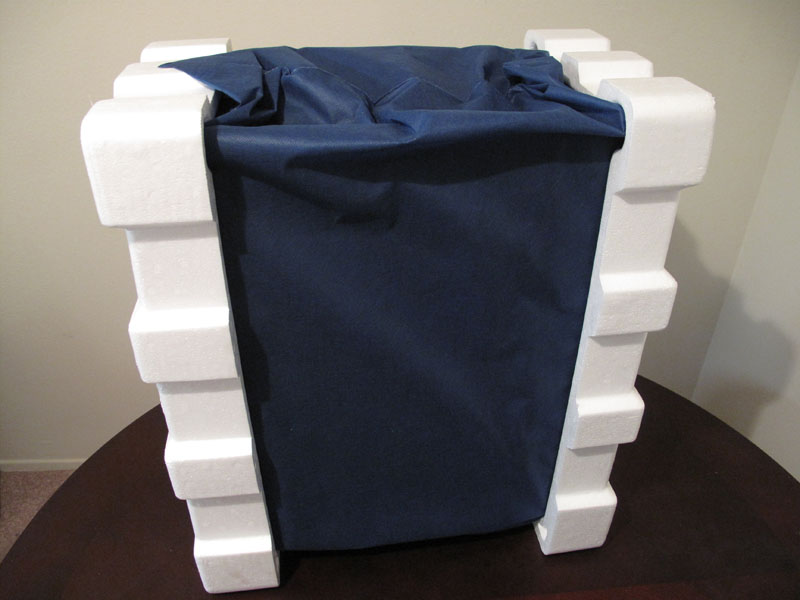 |
Once we crack into the box, we see the standard Styrofoam inserts holding the case. Another nice surprise that Thermaltake has thrown in is the cloth protective sleeve. This is especially nice if you need to ship your case often, as it will help protect the exterior from scratches.
A Closer Look:
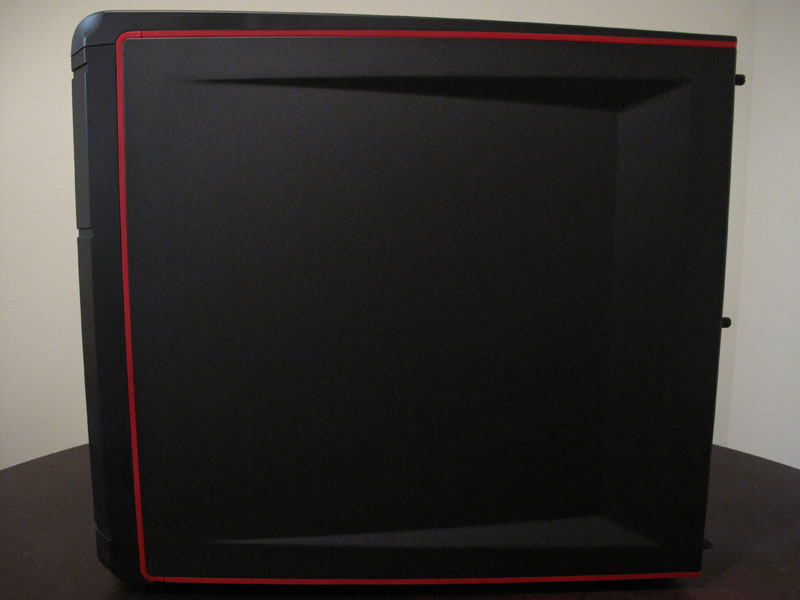
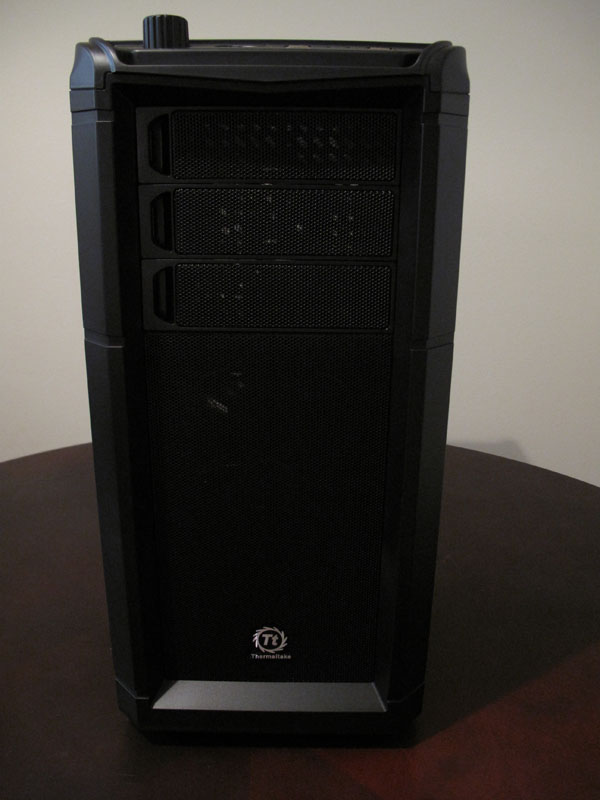
Once we remove all of the protection, we can get a good look at the Element G. The case has a red/black color scheme, which looks quite nice. The lines of the case flow quite well, and there is nothing on the exterior of the case that could be a hazard.
 |
 |
|
|
|
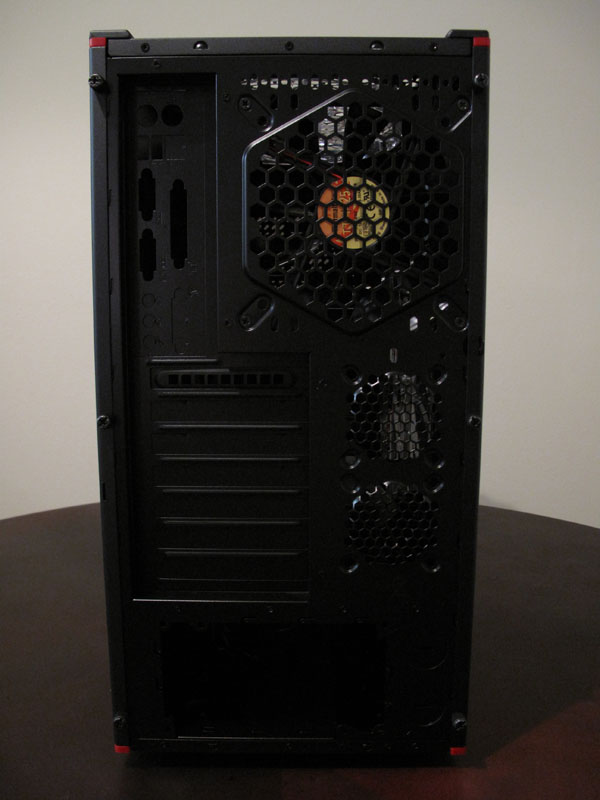
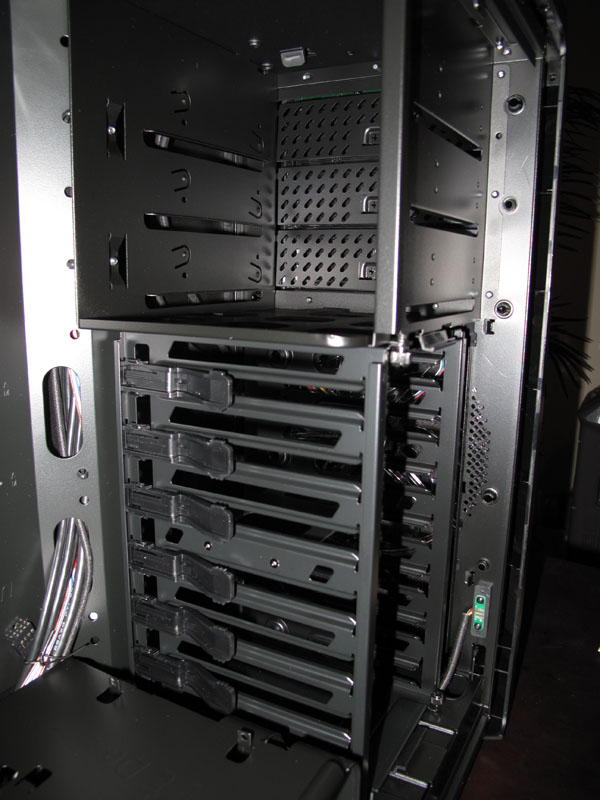
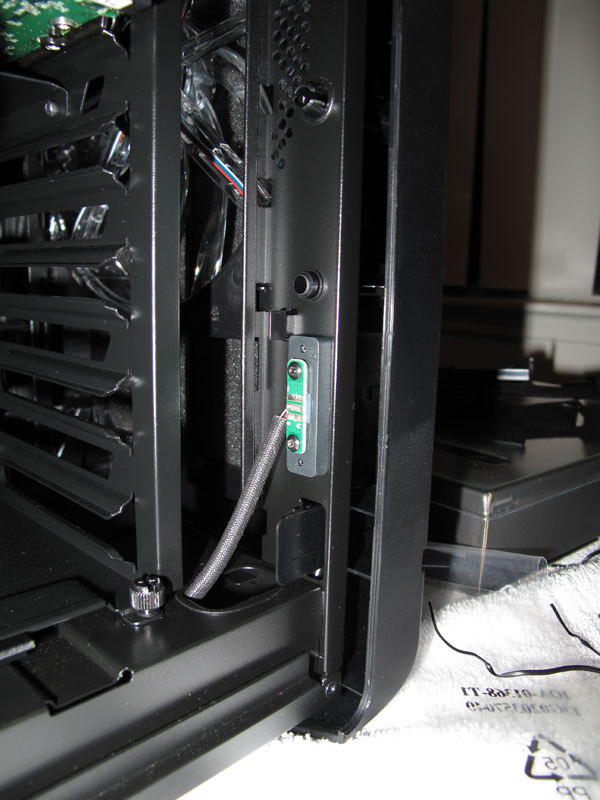
If we take a peek inside the case, we can start to see just what kind of a beast this case really is. As stated in the specifications, the case comes with a mounted front intake fan, which can be replaced with two smaller intake fans, and mounted using the included brackets. It is easy to see that this case is designed to accommodate a large amount of storage, with 7 3.5″ bays, and 2 2.5″ bays. It also has an innovative cable design, which many will find useful, especailly if you open your case frequently. The side fan is attached to power though pins that are mounted to the side panel, and the main chassis. This makes life simple when opening the case, because you don’t need to disconnect and reconnect a cable, just to get your side panel off. This is pictured in the bottom-right below.
 |
 |
|
|
|
So we have now seen what this case should be able to do, and I have pretty high expectations. Now let’s see just how easy the installation is…

What is the color of the “L” in TechwareLabs?