 |
 |
 |
||
Packaging
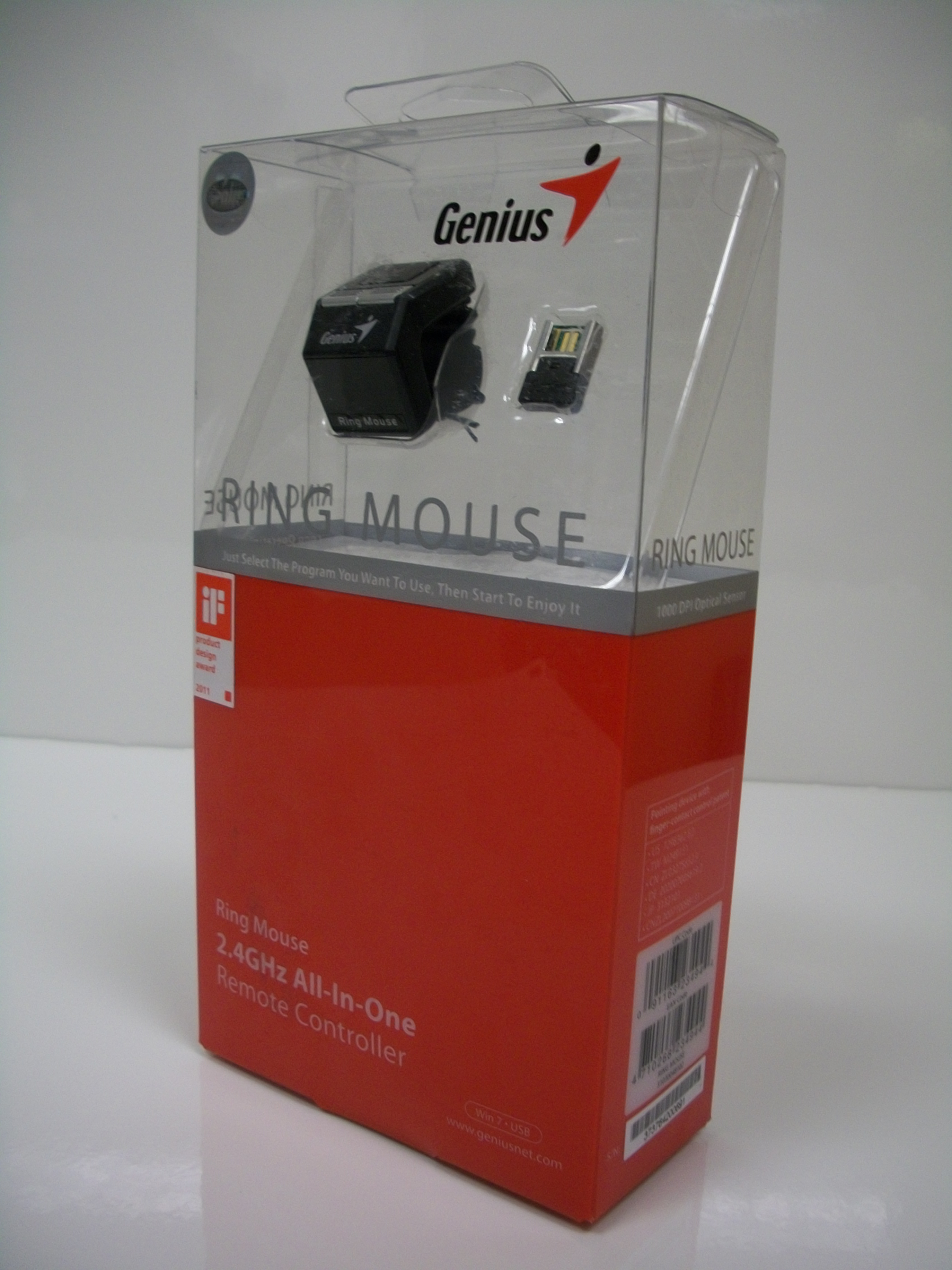
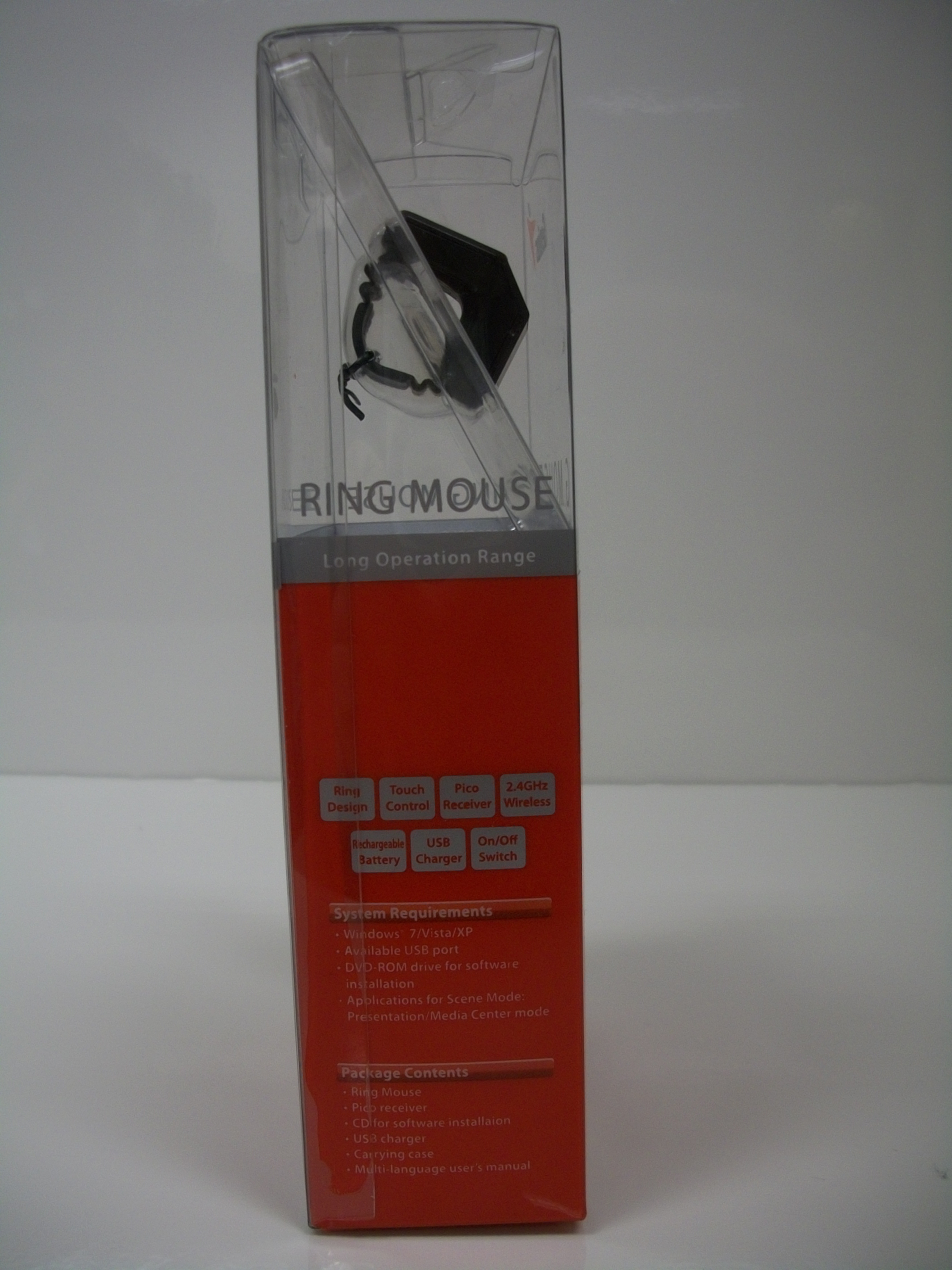
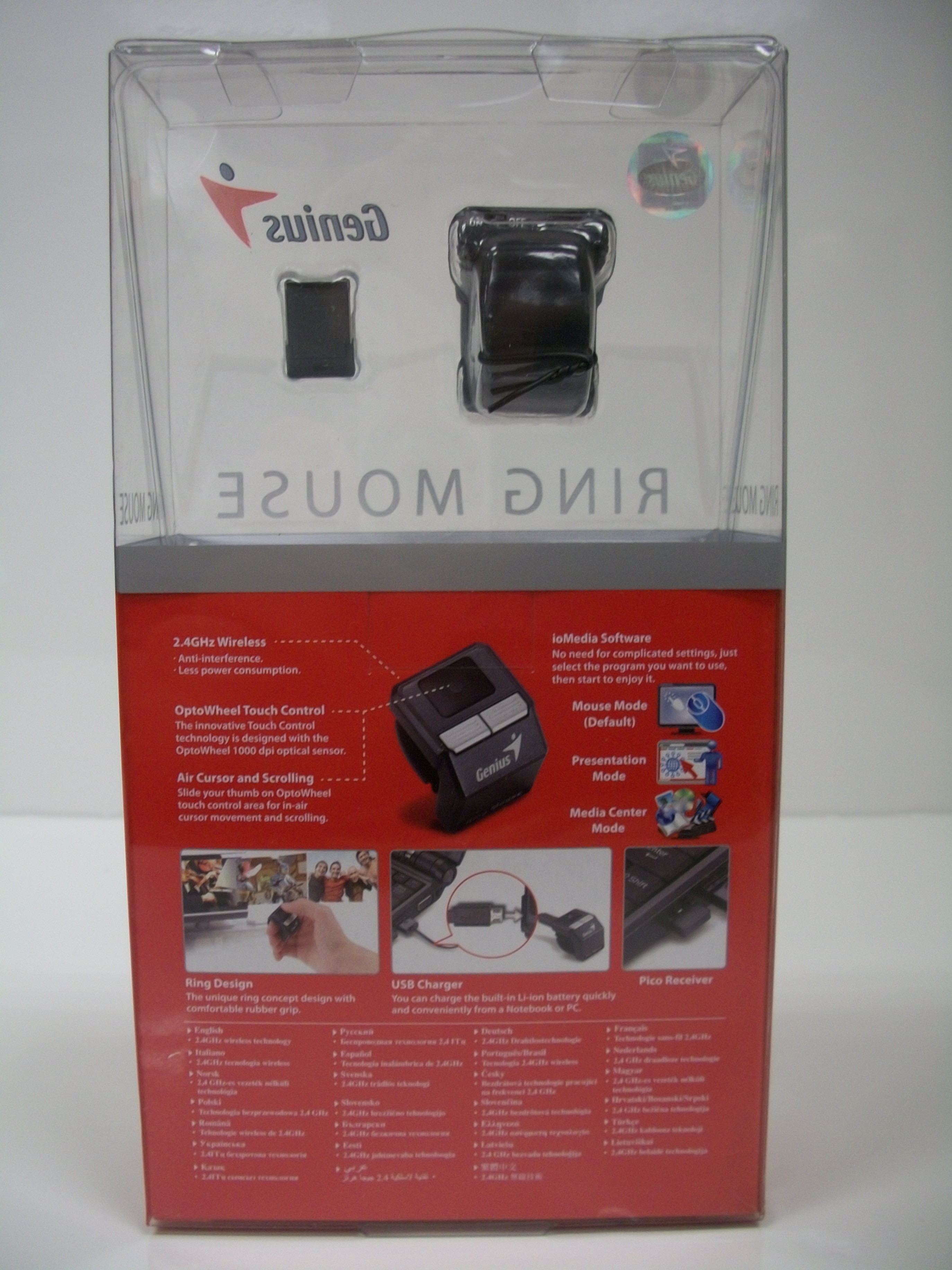
The packaging is easy to read and covers the basic functionality of the device while prominently displaying the mouse itself through the clear plastic top. While it is not the easiest thing to open by hand it is possible, although I personally recommend using a knife. The package contains the following:
- Ring Mouse
- Pico receiver
- CD for software installation
- Retractable USB charger
- Carrying case
- Multi-language user’s manual
 |
 |
||
Installation
What I liked most about this mouse is that installation is not required, it only enhances the experience. Windows 7 immediately recognizes the mouse once it is turned on and the Pico Receiver is plugged in to an available USB 2.0 port. The default setting is like a regular wireless mouse with the motion pad acting as the left-click and the right button acting as the right-click. The left button pretty much sits around feeling useless in the default setting and only begins to shine once you install the included software.
I feel I should mention that the instruction manual is extremely accommodating. It is written in 27 languages. Yes, that is a score and seven languages for your convenience. Ok, now back to Installation.
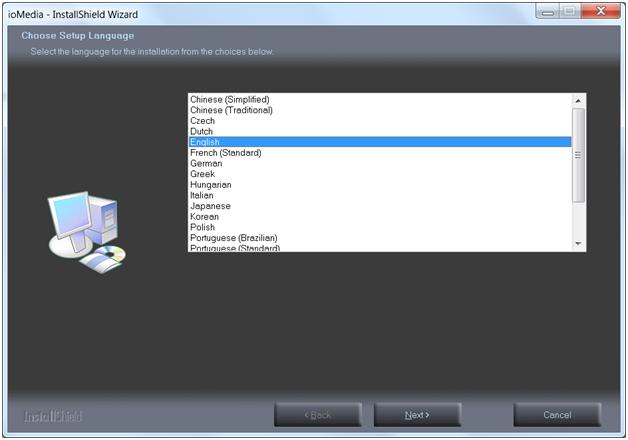
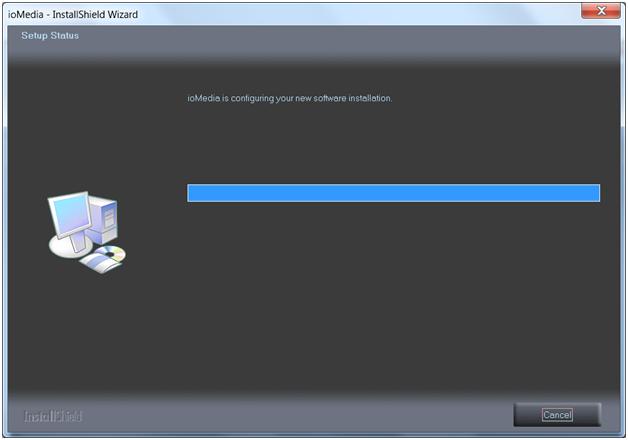
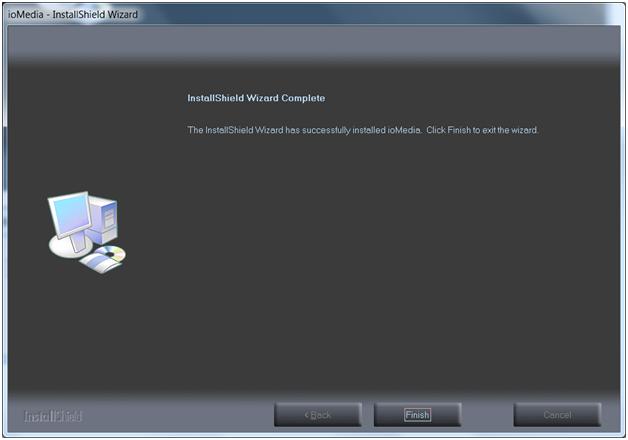
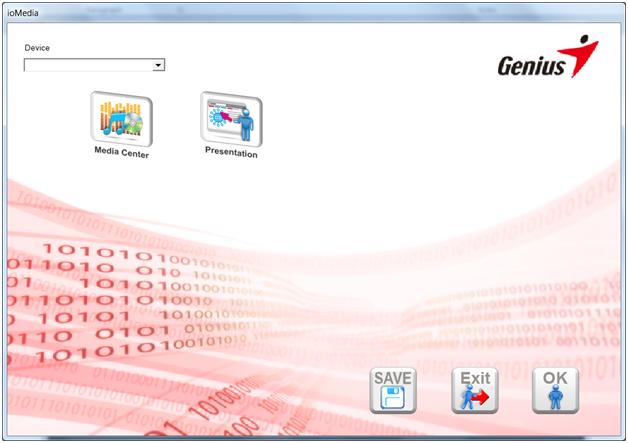
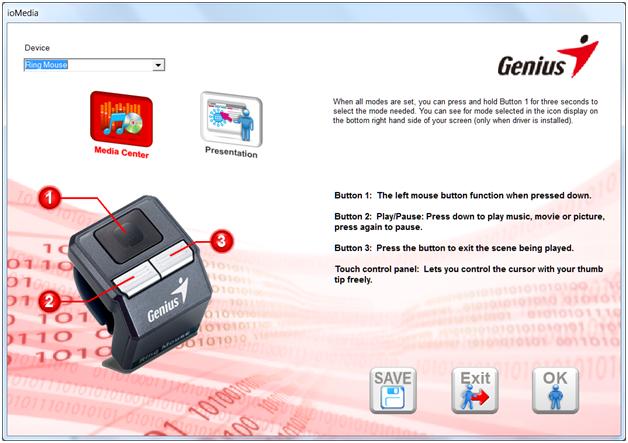
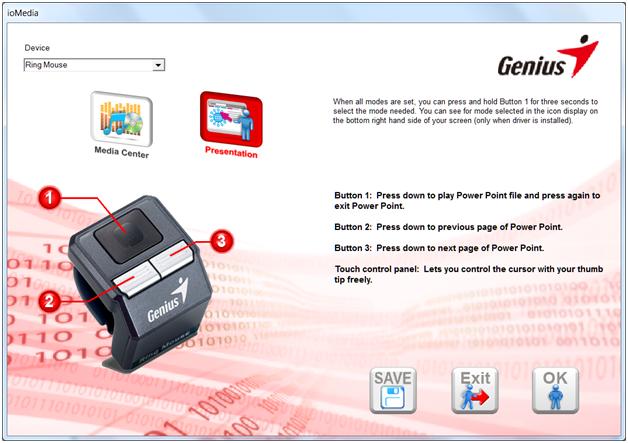
When you put in the CD and let it automatically execute the installation is short, sweet, and to the point. After the installation you will want to launch the ioMedia software. Here you can select which Genius device you want to manage, if you happen to have more than just the Ring Mouse. You are given two modes to choose from and save. These modes, mentioned earlier, are Presenter and Media.
Presenter Mode works much like you would hope it would with the left-click both starting the PowerPoint presentation and stopping it. The left button takes you to the previous slide while the right button advances you to the next slide. The touch pad lets you move your cursor around the presentation.
Media Mode has the touch pad button working just like the regular left-click function. The left button plays/pauses the media you are watching or listening to while the right button exits the media medium.
You can switch between your saved mode and regular Mouse Mode by holding down the left button for 3 seconds and then releasing. You will see a pop-up on your screen informing you of the change.
 |
 |
||
| Installation Screen | Installation Cont… | ||
 |
 |
||
| Installation Final | Default ioMedia | ||
 |
 |
||
| ioMedia Mode 1 | ioMedia Mode 2 | ||
 |
 |
||
| Saving your Selection | Pop-ups in lower-right |



[…] Genius Ring Mouse – TechwareLabs […]
[…] thoughts on the AC Ryan Playon!HD Mini 2 Full HD Network Media StreamerTechwareLabs tests out the Genius Ring MouseTechReviewSource sits down with the Samsung Series 5 NP530U4BHotHardware weighs in on the Zotac ZBOX […]
[…] Genius Ring Mouse – Techware Labs […]
[…] TechwareLabs #dd_ajax_float{ background:none repeat scroll 0 0 #FFFFFF; border:1px solid #DDDDDD; float:left; […]
[…] as well as functioning as a regular mouse. Techware Labs like the easy con&… as well as playing and pausing video […]
[…] Genius Ring Mouse @ TechwareLabs […]
[…] Genius Ring Mouse @ TechwareLabs […]
[…] Genius Ring Mouse @ TechwareLabs […]