7.) Shutdown the computer automatically through programs.
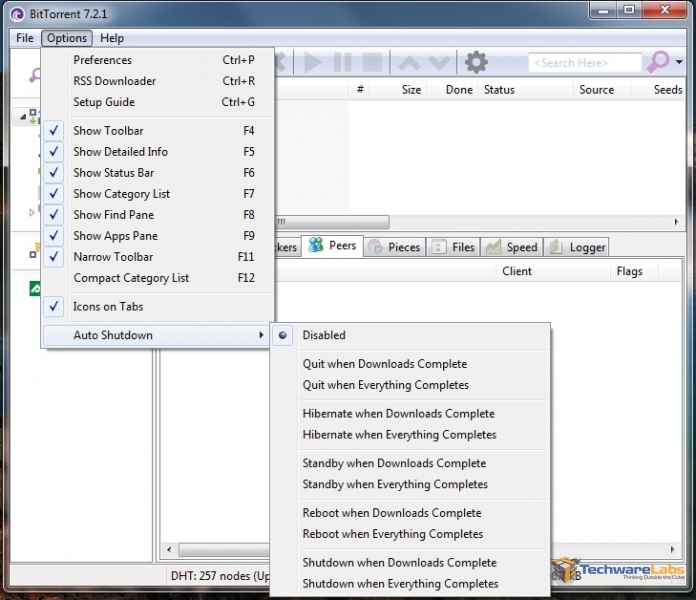 |
Many of us have been in this situation. You are downloading a large file and it is not going to finish before it is time to go to bed. So you decide to just leave the computer on all night rather than stop the download and resume it in the morning. Unfortunately though the download will be finished after only a few hours after you go to bed and the computer just gets left on doing nothing for the rest of the night. This is a waste of power and can be avoided. For example, if downloading with a torrent program, most popular ones such as Bittorrent have a built-in auto shutdown feature that can turn your computer off when a download is finished. It is also possible to set timers with programs such as WinOFF which has the capability of automatically turning the computer off after a certain amount of time or at a scheduled time.
6.) Enable Intel Speedstep or AMD Cool ‘n’ Quiet.
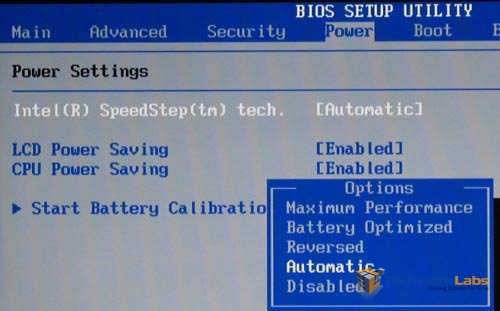 |
Speedstep and Cool ‘n’ Quiet are settings within the motherboard that throttle the cpu when it is not in use. They both do basically the same thing which is to reduce the speed of the processer and the amount of voltage delivered to it when it is not in use. By allowing the cpu to go into a low power state at idle and then instantly jump to full speed under load, power consumption is reduced while performance is unaffected. Luckily this setting is on by default in most computers but some pc’s may not have this setting turned on. It can be accessed fairly easily through the motherboard BIOS usually under the cpu settings section.
5.) Adjust Windows power settings.
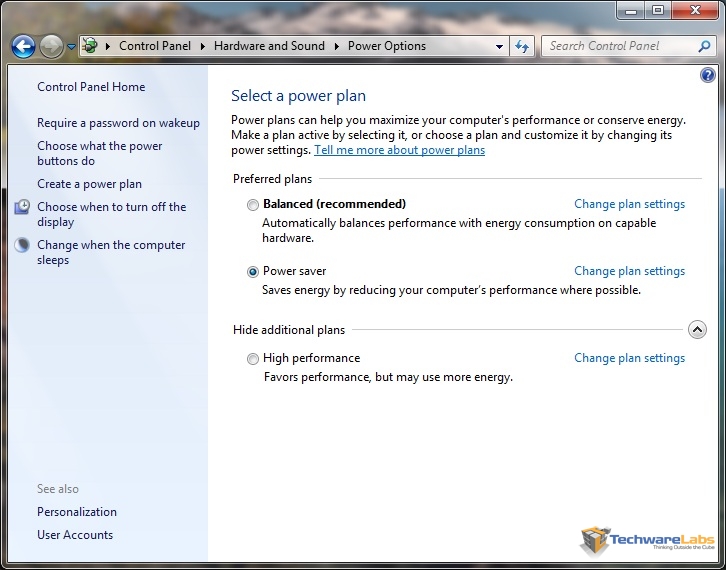 |
Many people do not know that Windows itself has built-in settings that can be adjusted to conserve power. In Windows 7 the menu can be accessed through Control Panel > Hardware and Sound > Power Options. Everything from how long before the monitor turns off to whether the computer should automatically go to sleep can be adjusted here. There are presets including one for power saving. A computer can be made greener by having the monitor turn off after a shorter period of time such as 10 minutes, the hard drives to stop spinning after 15 minutes or so, and eventually for the entire computer to go into sleep mode after 30 minutes of inactivity. By changing these settings you can help to reduce the power your computer draws when you are not using it.
4.) When purchasing a laptop, keep power consumption in mind.
Because laptops tend to be used very frequently, they are usually left on for long periods of time by many users. Due to this, it is important to keep power consumption in mind when shopping for a new laptop. Newer laptops are always being released with more efficient batteries that hold a charge for longer and components that draw less power. When shopping look for not only how long the battery will hold a charge but also how large the battery itself is. If the laptop has a very large battery and still doesn’t stay charged for very long then the battery will have to be charged more often with more power than a lower power laptop. If you know that you are only going to be checking email and Facebook on your laptop go for one that has a smaller battery and holds a charge for a long time.

[…] Kingston DataTraveler Ultimate 3.0 G2 32GB @ Techgage iBuyPower BTS 11 Gaming PC @ TechReaction Top Ten Green Tips for Your PC @ TechwareLabs Intel Sandybridge 2500k Review @ XSReviews NZXT Havik 140 CPU Cooler @ Pro-Clockers Antec HCG-620 […]